Procore
Procore is a cloud-based construction management software platform. It helps construction companies streamline and manage their projects from design to handover, including areas like project planning, document management, communication, and more.
With the Evercam integration, you can:
Embed and launch Evercam app from a project in Procore and access your project Cameras (I.e., Live View, Gate Report) without leaving Procore.
Capture and download high-resolution images from any second of the project (i.e., Recording, 360) via our Mark-up Tool.
There are 3 ways Evercam can integrate with Procore ↔️
Send Photos or ‘Observations’ to Procore via Mark-up tool
Send Progress Photos via Automation
Evercam App via Procore Marketplace
1. Send to Procore 📨
In the Evercam Dashboard, click the arrow beside your User Name, then go to Settings > Connectors.
Select Connect in the Procore card, and log in with your Procore credentials.

Once logged in, you can use the Mark-up Tool > Send to Procore to send images to a Procore Project, and into an Album.


Alternatively, you can select Send to Proocore > Observations, fill up fields and send to a specific Procore Project and Album. Procore’s Observations tool is used to assign tasks to project team members on issues including quality, safety, commissioning and work to complete.

Send to Procore as Observations.
📝Procore Observations
A digital "to-do list" repository for team members, on construction issues like safety hazards, quality problems, or work to be done. It centralises everything, replacing notes and emails.
You can attach Evercam photos directly to an issue and send them to Procore as an Observation. This gives you undeniable visual proof, making issues clearer, speeding up fixes, improving communication, and creating a solid historical record.
What You Need ✅
Procore and Evercam subscriptions and integration setup
Mobile capture devices for field use (i.e. Insta 360 camera, mobile phone and Evercam Mobile or Capture App)
Clear internal processes for managing observations
Creating Procore Observations 📃
Creating Procore Observations in Evercam requires you to fill out fields to qualify the assignment. Mandatory fields to be filled out are assigned in Procore.
What's the Problem? Give it a short, clear name (i.e., "Leaking Pipe - 3rd Floor Bathroom") and then explain what's wrong in detail.
Show Me! Take images or video footage from the Evercam platform to visually show the problem.
Where Is It? Pinpoint exactly where the issue is on the site or drawings.
Who's Fixing It? Assign it to the specific person (Assignee) or team responsible for resolving the issue.
When Does It Need to Be Done?. Give a clear deadline (Due Date) for when the issue should be resolved.
What Kind of Problem Is It? Is it a safety issue, a quality problem, or just something that needs to be completed? This helps organise and report on different types of issues.
How Urgent? Is it low, medium, high priority or urgent? This tells the Assignee how quickly they need to act.
Fill out details and send Observations to Procore.
Best Practices ⭐
Be specific, always add Evercam visuals, assign clearly with due dates, categorize, and include location.
Acknowledge, update progress, attach Evercam photos of completed work, and communicate roadblocks.
2. Progress Photo 🖼️
When creating a Progress Photo (formerly called Snapmail), you can select Procore as the Provider.
Select the Procore Project and Project Album to which the image will be sent.
Select the days and the time you would like to receive an image.
Press Save.

3. Add Evercam App through the Procore Marketplace ➕
Go to: https://marketplace.procore.com/apps/evercam and click Install App (when logged in).
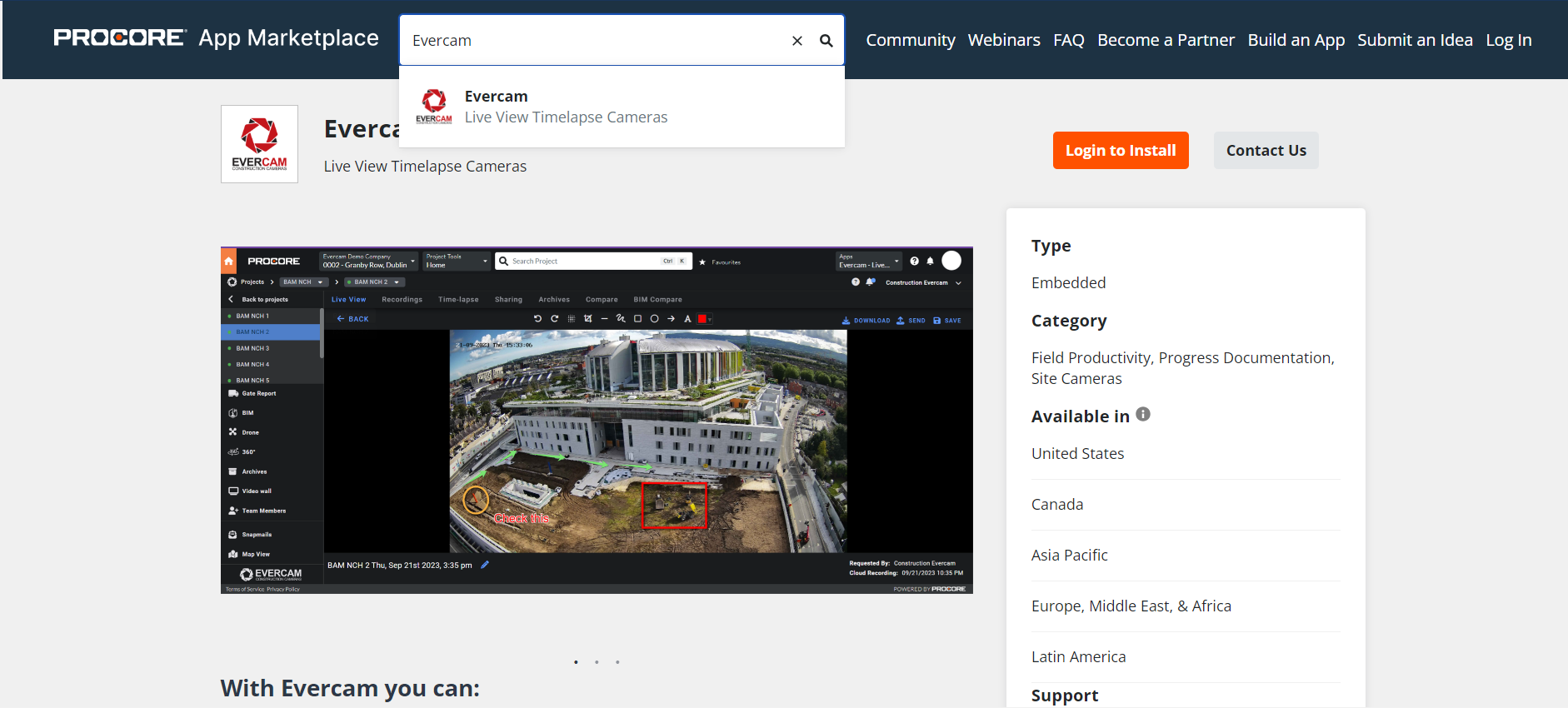
Once you have installed the app, go to Procore Dashboard and select App Management. Evercam will appear in your apps list.

Select View on the Evercam row.

Go to the Configurations tab and select Create Configuration.

Note: Global Projects Configuration will let you access your cameras from all of your Procore Projects, and Company Level Configuration will let you select which projects you want to add Evercam to.
For the title, you can name it ‘Evercam Live View’ or however you wish.

Once the configuration is created, you will be able to access Evercam - Live View App through the apps dropdown.

If you have trouble accessing Procore after some time, please disconnect and reconnect in the Settings > Connectors tab.
Use Evercam Reality Agent in Procore AI
Reality Agent connects Procore AI to Evercam project data through the Evercam Model Context Protocol (MCP) service. It can retrieve camera images, find recorded events and relate visual evidence to project records. Availability depends on the installed app version, project access and enabled Evercam features.
Before you start
Your company must have Procore AI enabled and an Evercam app version that includes Reality Agent.
A company administrator must enable the agent for the required Procore project in App Management.
Your Evercam account must have access to the corresponding Evercam project and its data. Complete the Evercam sign-in or connection prompt if shown.
Gate Report, PPE, Smart Search and 360 workflows require the relevant feature and data on that project.
Ask a question
Open the project in Procore and start a new Procore AI chat.
Choose Evercam Reality Agent from the agent selector below the message box.
Ask your question. Include the camera or area, date, time and timezone when relevant.
Review the answer, capture timestamps, links and tool results. Ask a follow-up to narrow the camera, period or source.
Screen walkthrough
Example from the PAR15 demo conversation on 12 October 2026. Open an image to see the details.
1. Select Evercam Reality Agent. Open the agent selector below the message box. A checkmark shows the selected agent.

2. Ask a specific question. Include the project and camera, and ask for the source and capture time. Check the timestamp and timezone in the response.
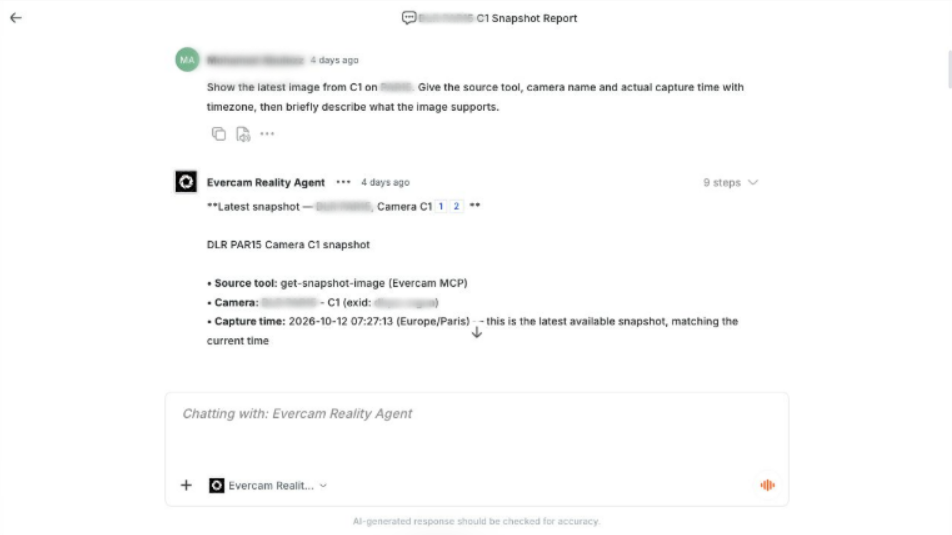
3. Inspect the steps. Open the steps beside an answer, then the side-panel icon. The Reasoning panel shows which tools ran and whether they completed.

Examples
Show the latest image from camera C1 and describe what is visible.
Retrieve C1 at 10:00 on 7 October 2026, Europe/Paris. State the actual capture time.
Find crane activity yesterday and list the cameras, times and example images.
List recorded PPE detections for this week, or explain if no records are available.
What the MCP tools do
Projects and cameras: identify accessible projects, list cameras and check coverage.
Images and media: retrieve current or historical snapshots and find saved clips, time-lapses and other media.
Events and search: query Gate Report and PPE records and search indexed images or 360 walks where available.
Project context: retrieve available schedule, daily-log and other connected records to compare planned work with observed evidence.
Reports: prepare supported reports and request confirmation before creating or changing records.
Tool availability varies by account and project. An empty result means that the requested records were not found; it does not establish that no work or event occurred.
Review the evidence
Check the camera, capture time and timezone before using an answer. Historical images may be the nearest available frame. Camera blind spots and missing records limit what can be confirmed. The agent should distinguish visible evidence from metadata, planned work and inference. If an image does not render in chat, use the returned link where available.
Get help
If the agent is missing, ask your Procore company administrator to check the installed version and project scope. If Evercam data is unavailable, check the Evercam account connection, project permissions and enabled features.
For further help, contact your Evercam support contact or Customer Success representative. Include the project and camera names, question, date and timezone, error message and relevant screenshot or chat link. Do not include passwords or access tokens.