Features
Drone allows you to visualise a 3D reconstruction of your site from a drone mapping (photogrammetry). 🗺️
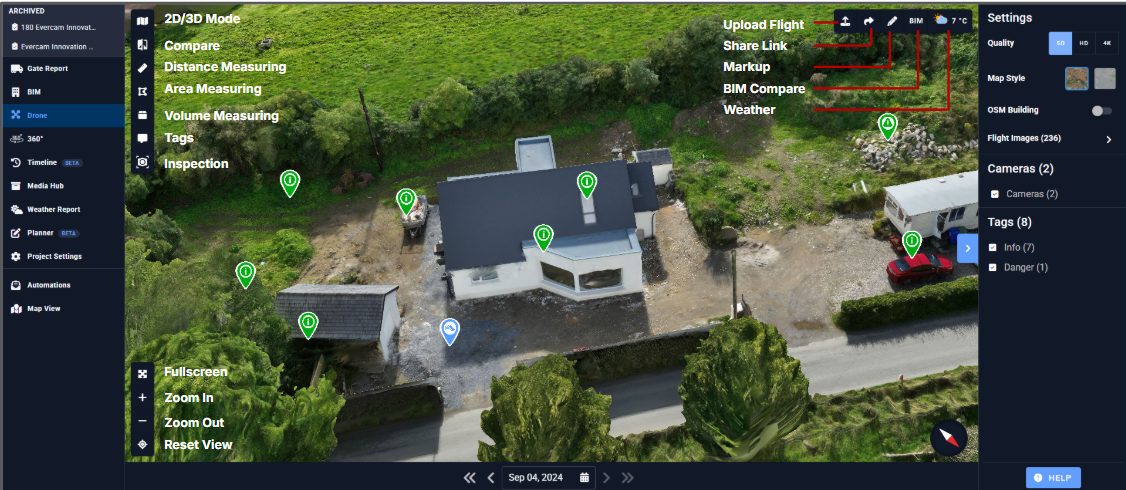
🧭 Navigation Tools
To explore the view, use the navigation tools at the lower left side to enter full screen, zoom in/out & and reset the view.
You can also use your mouse wheel to zoom in/out.
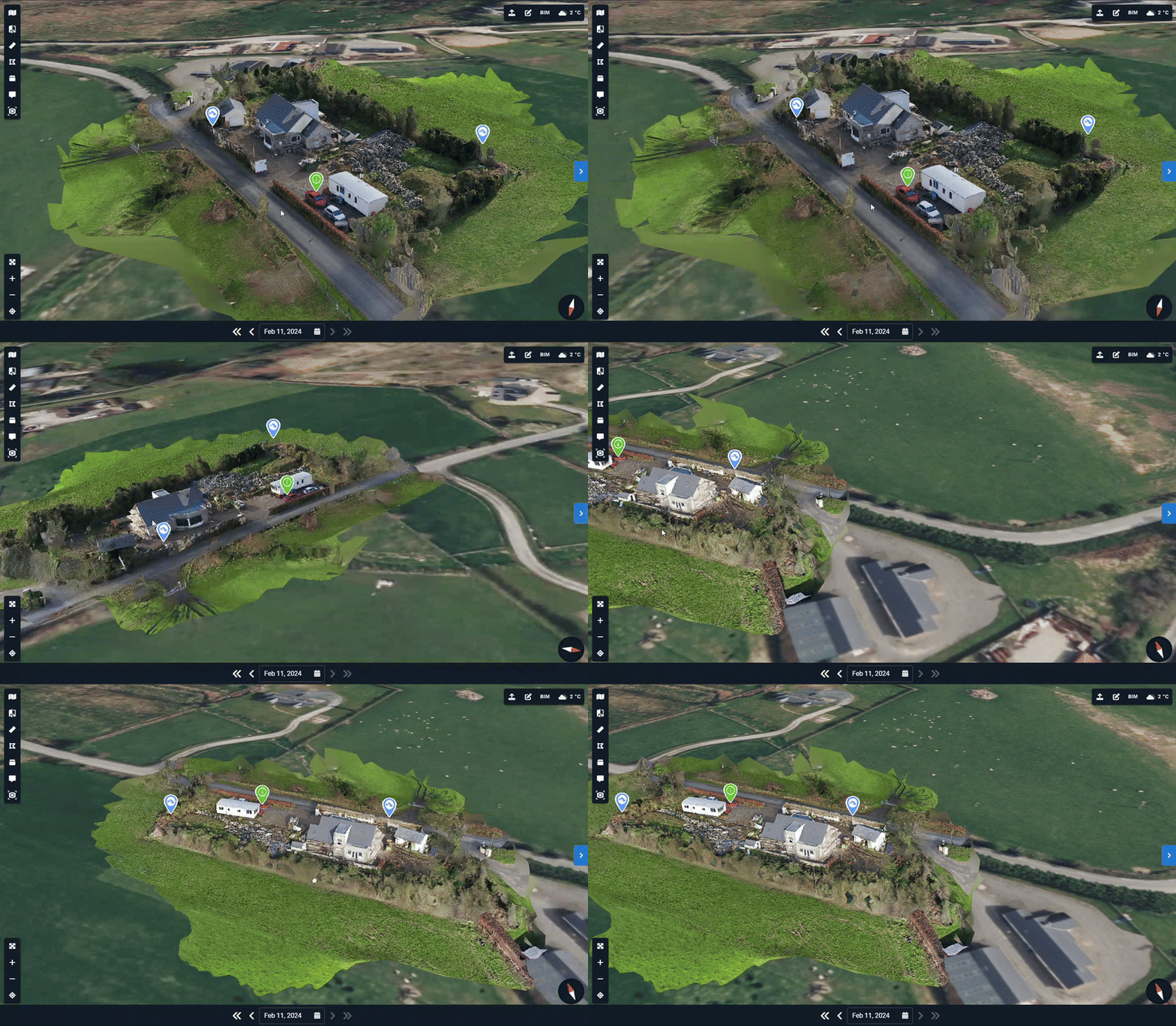
Left-click on your mouse, hold and orbit around the model.
Right-click and drag to pan through the view.
📷 Access Live Camera View
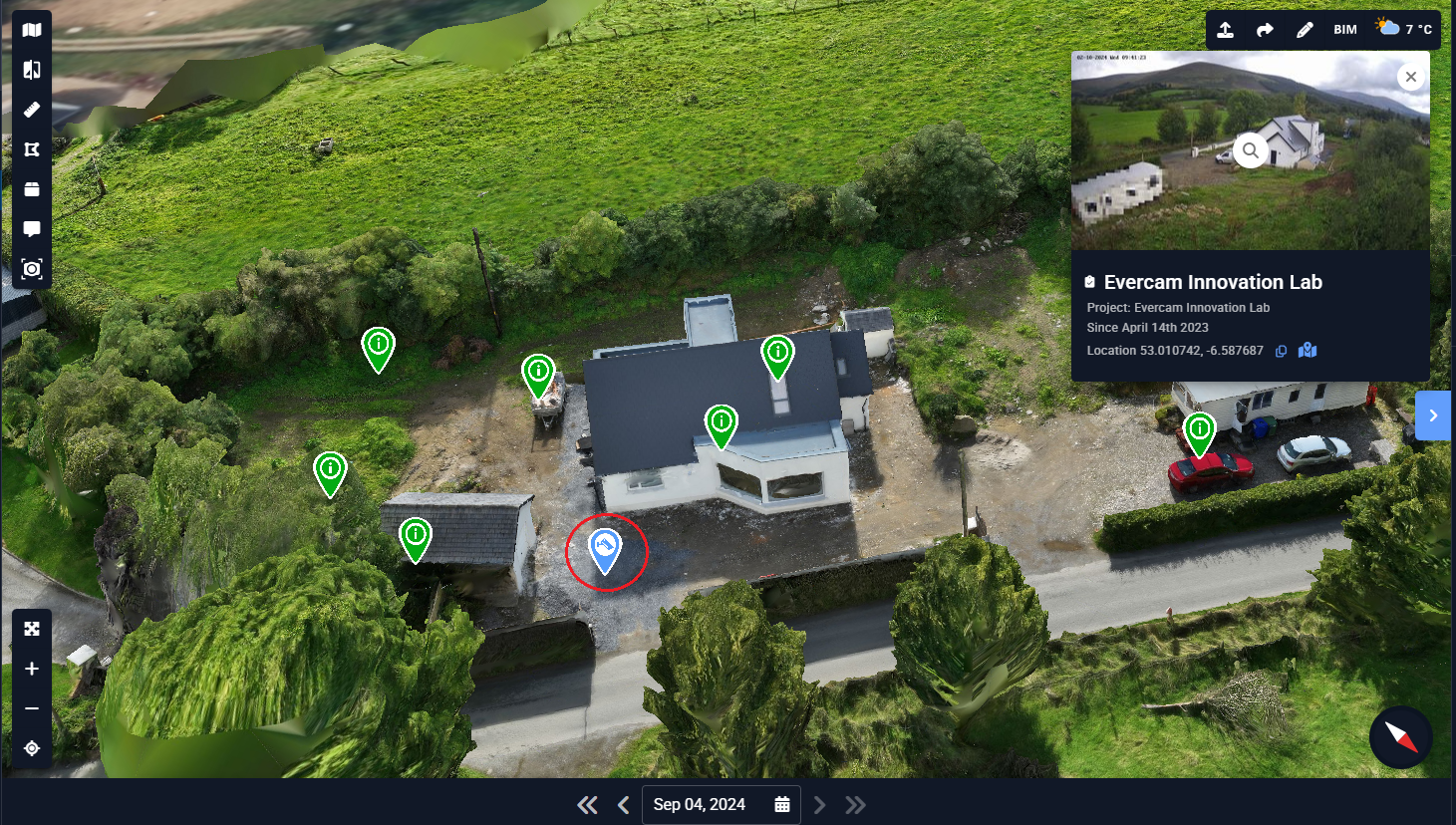
You can access all basic Evercam features by clicking on the camera markers to take you to the live camera view.
🧰 Drone Tools
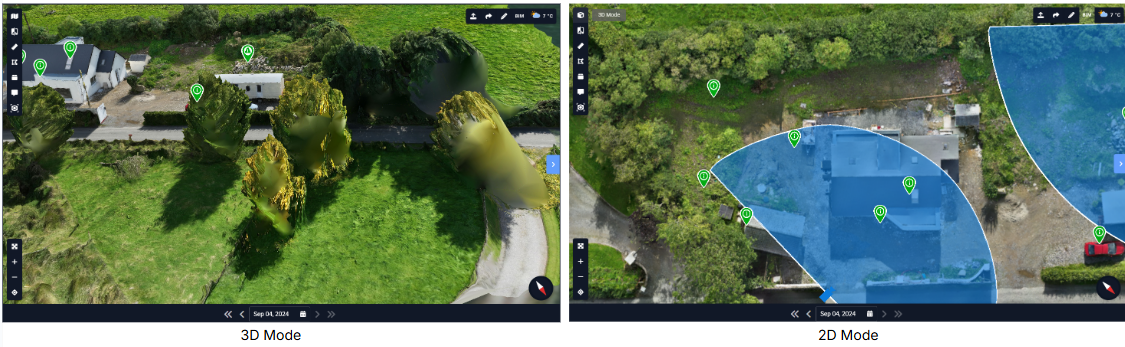
To see the site from above, you can use the 2D Mode tool, which has a seamless transition from 3D Mode as it is the same scene.
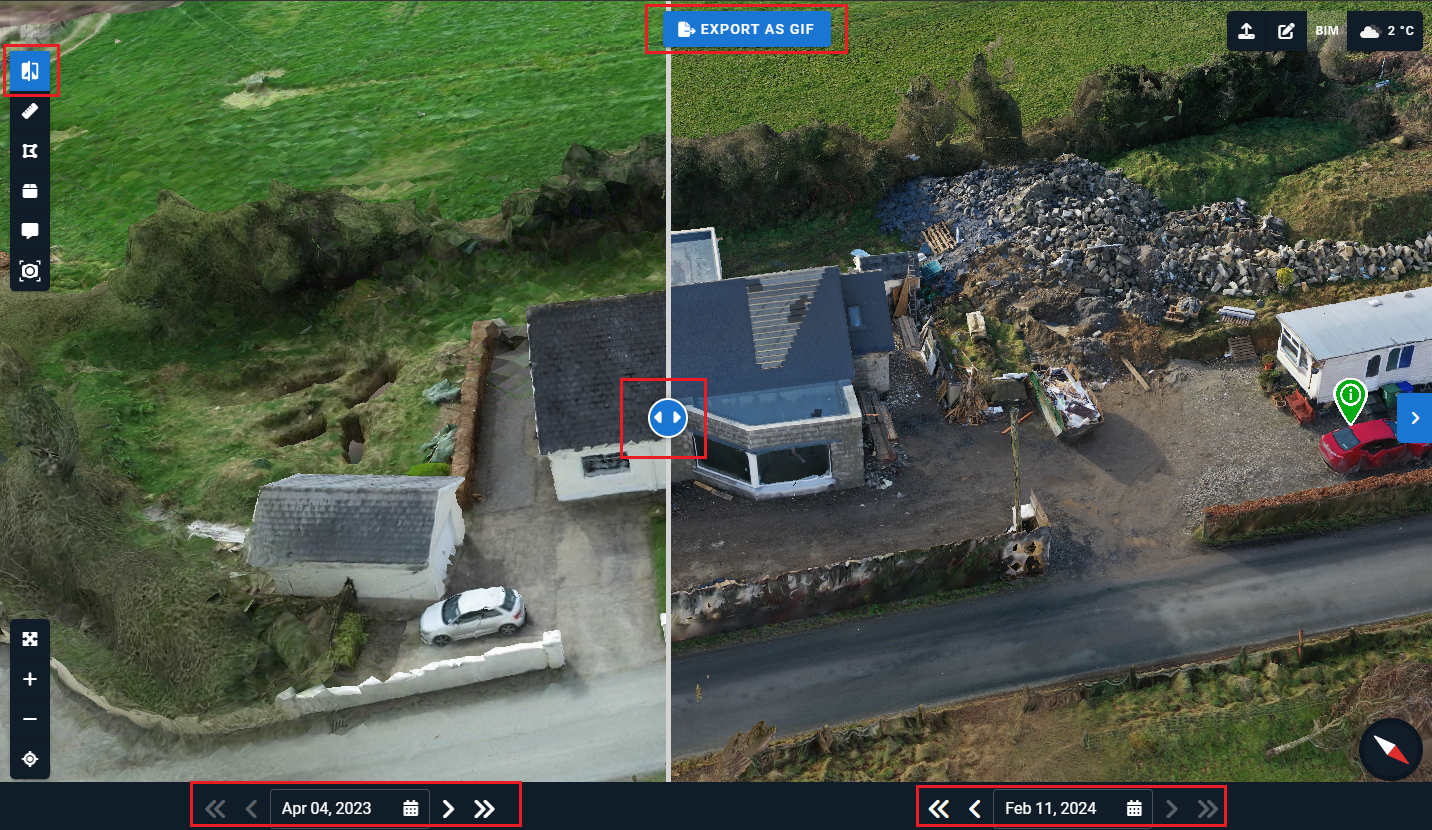
To track progress on site, you can use the Compare tool and choose between comparing two drone flights (available when there is more than one flight). The Compare can also be exported to a GIF and will be saved in the Media Hub.
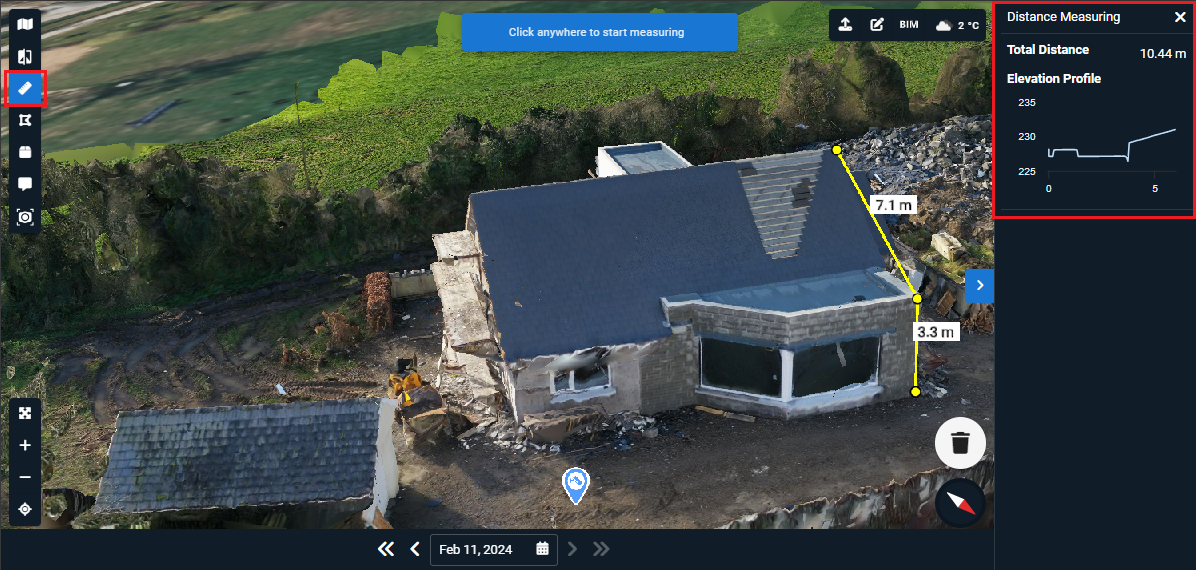
You can quantify distances and heights (with a 5% margin of error) using the Distance Measuring Tool.
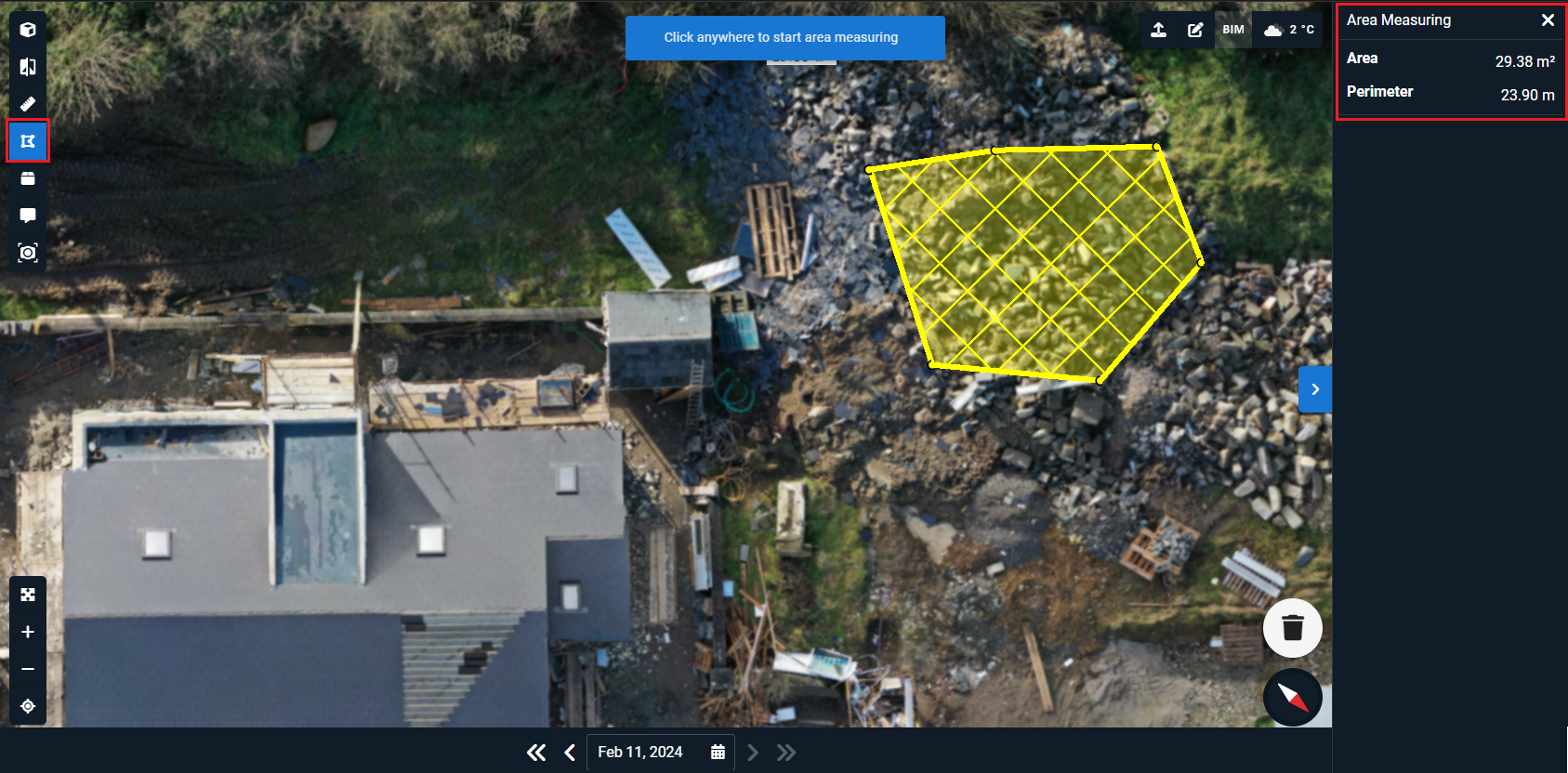
You can quantify areas (with a 5% margin of error) using the Area Measuring Tool.
You can estimate stockpiles and materials on-site using our Volume Measuring Tool.
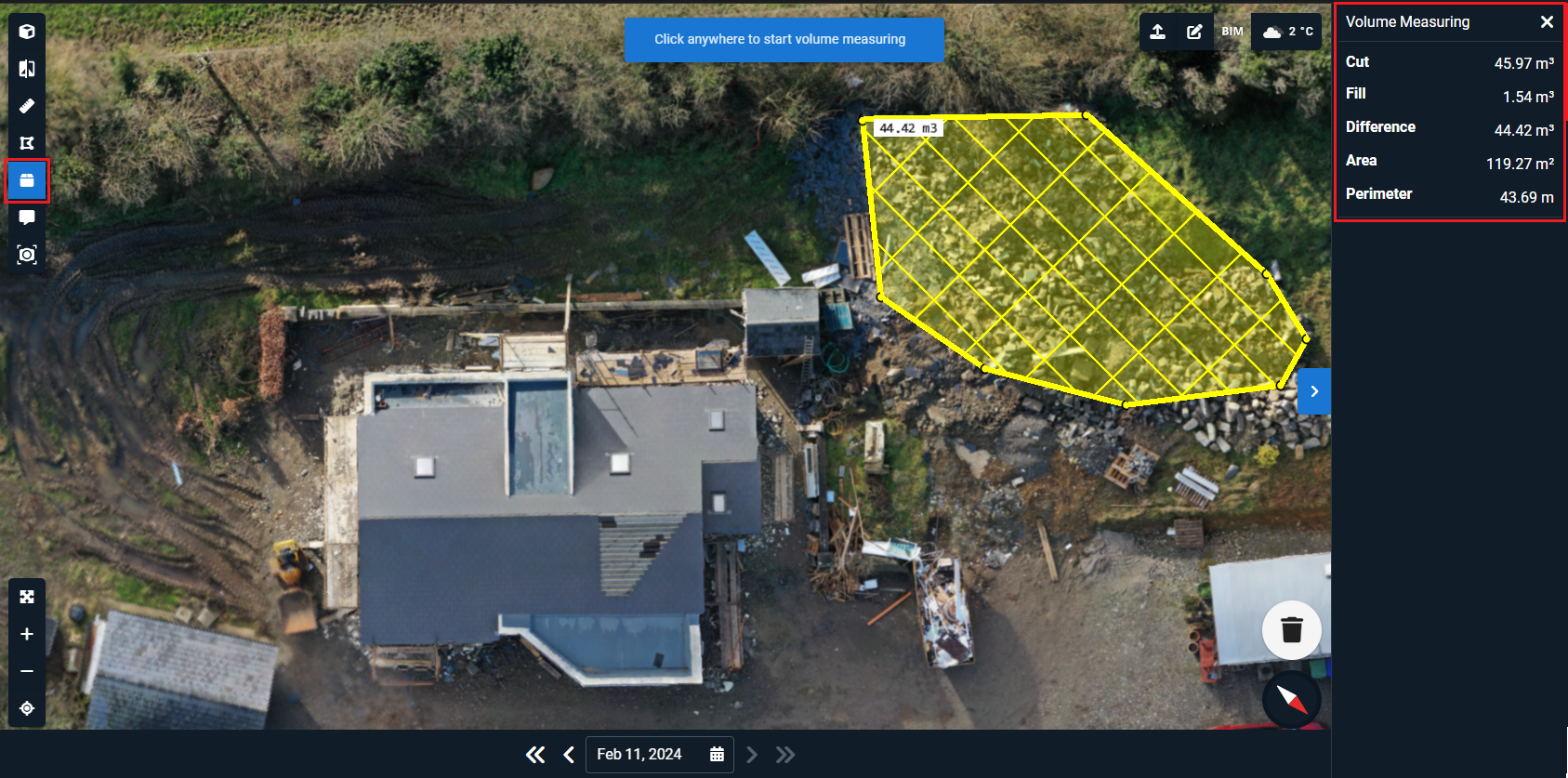
Note: We use an Elevation Map, so we default to 2D view for volumetric measuring to get the best result with minimal marginal error.
For calculating volume, we use the Line of Best Fit method.
Cut = anything above the ground
Fill = anything below the ground
To highlight information for other users, you can create (and hide) annotations on the model using the Tagging tool.
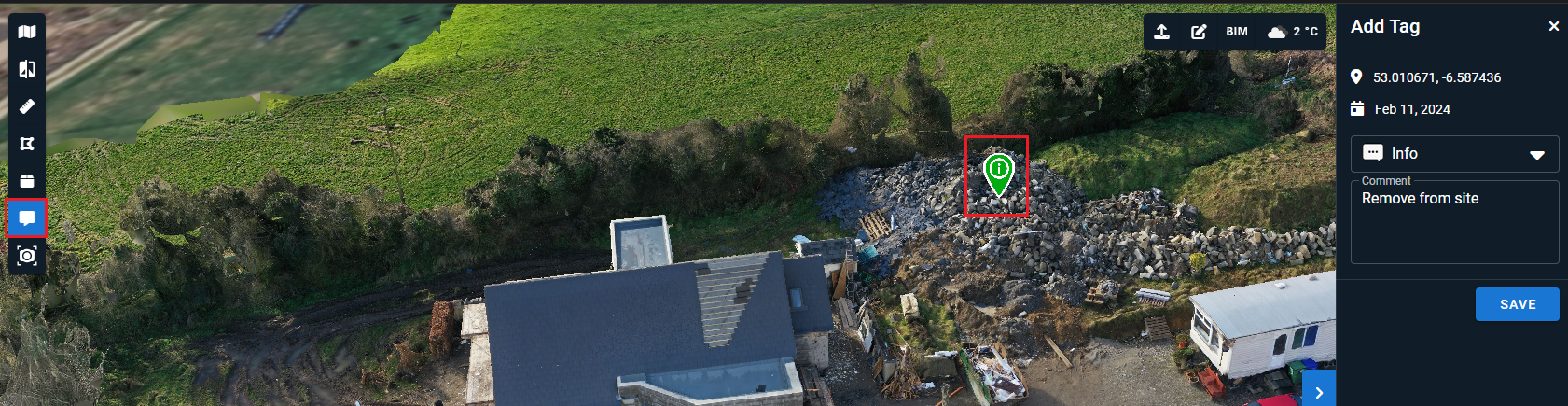
Choose the tag type (Info, Danger, Restricted, Hyperlink) for easier coordination.
Tags can be deleted anytime by selecting the tag and clicking the trash bin icon that will appear.
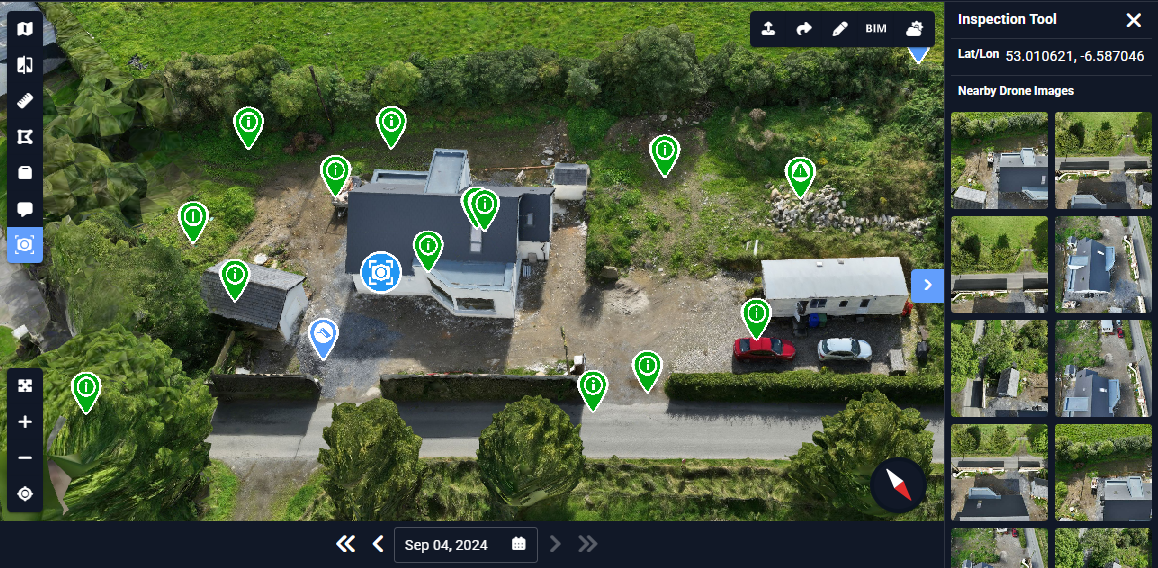
You can enable the Inspection Tool to click on any point for the Viewer to generate the ten (10) closest images related to that point.
You can click on any image in the right-side panel to further inspect it and even mark it up, as the .jpeg image has a higher resolution than the mesh model.
⚒️ Cross-Platform Features
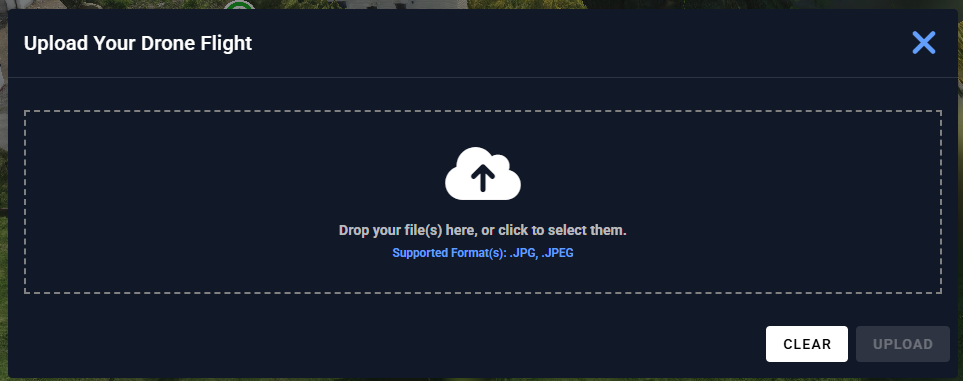
Upload a drone flight directly from the dashboard. ⬆️
We only support .JPG/ .JPEG files.
To share the specific drone flight, click the Share button (arrow) to copy the URL that can be pasted on an email, a message, a browser, etc.

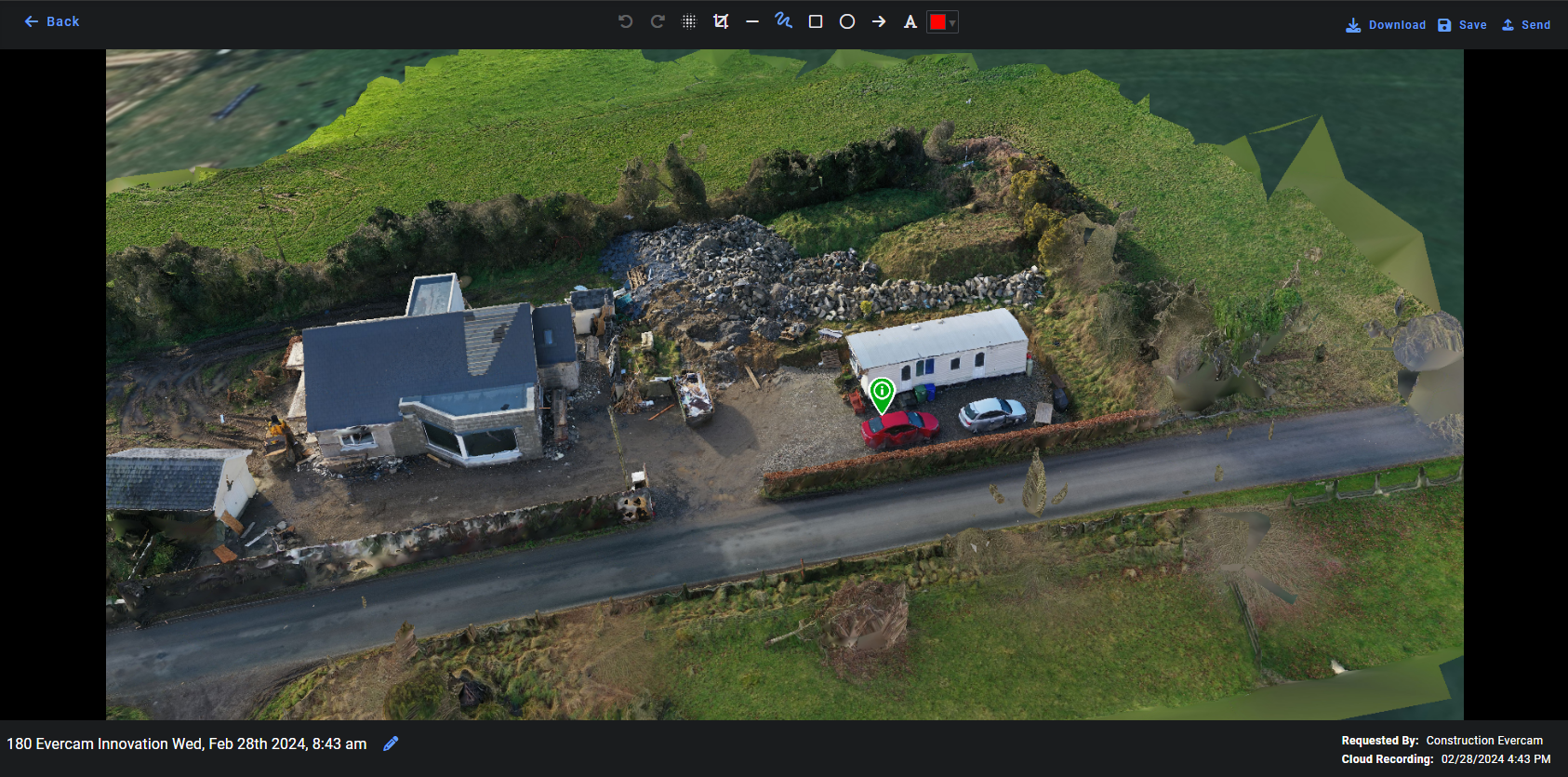
To share the image with other users, you can use the Mark up tool to capture a screenshot and place text or drawings.
To view the BIM and to check out the surrounding buildings, enable the BIM feature.
Requires Platform Level BIM Viewer in the project.
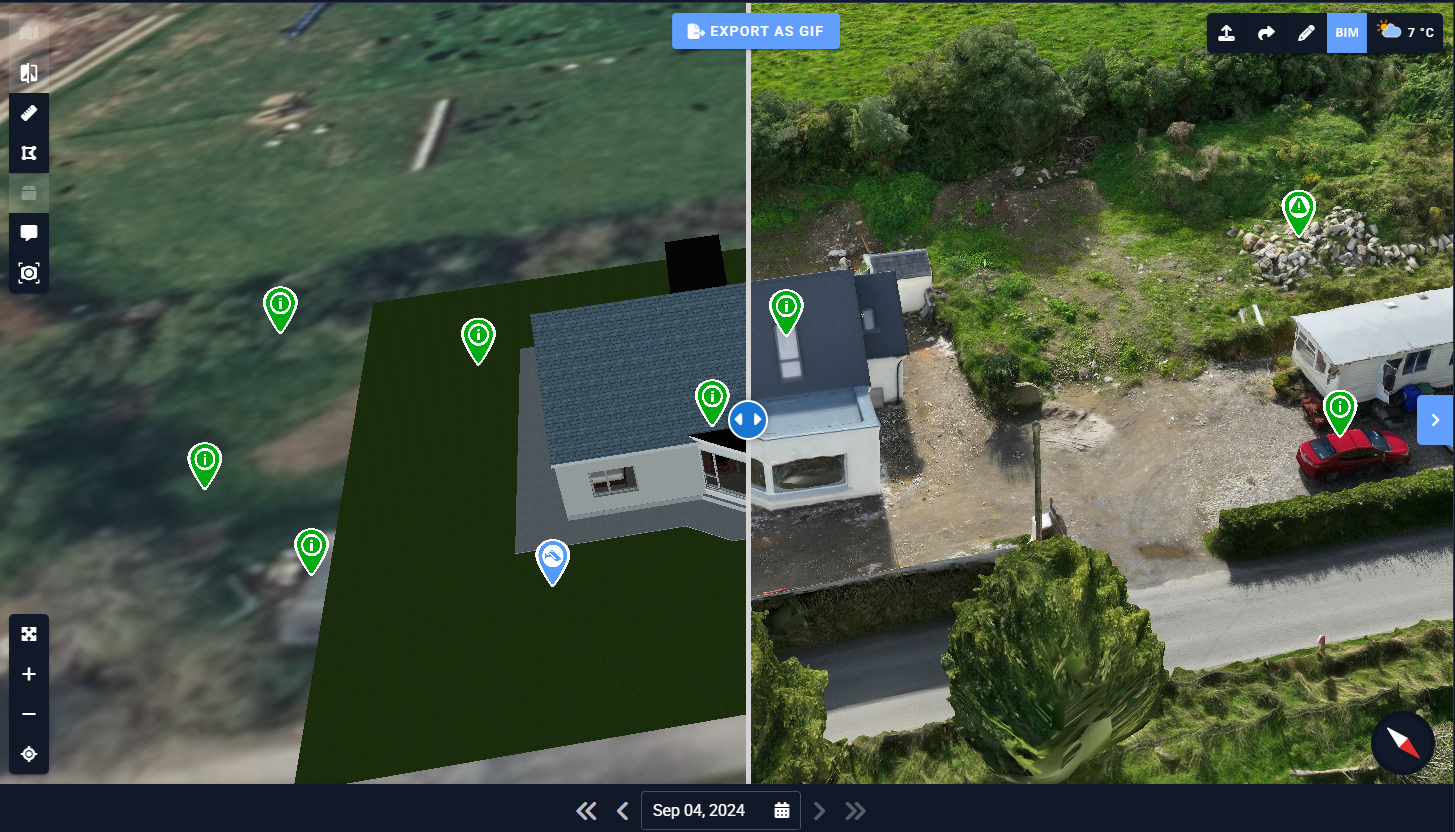
Overlay BIM on the Drone model
When a BIM model is available for the Drone view, use Overlay BIM for a clear, unobstructed comparison of the as-built site and the as-designed model.
In the sidebar, enable Overlay BIM.
The BIM is rendered directly over the Drone model. Turn the option off to return to the split-screen comparison slider.
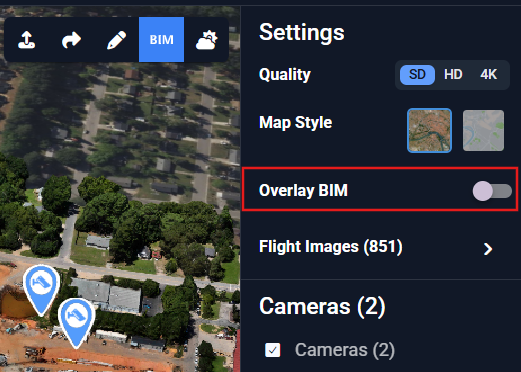
To access the weather information for the date of the flight, click on the Weather button and choose the specific date you would like to view.
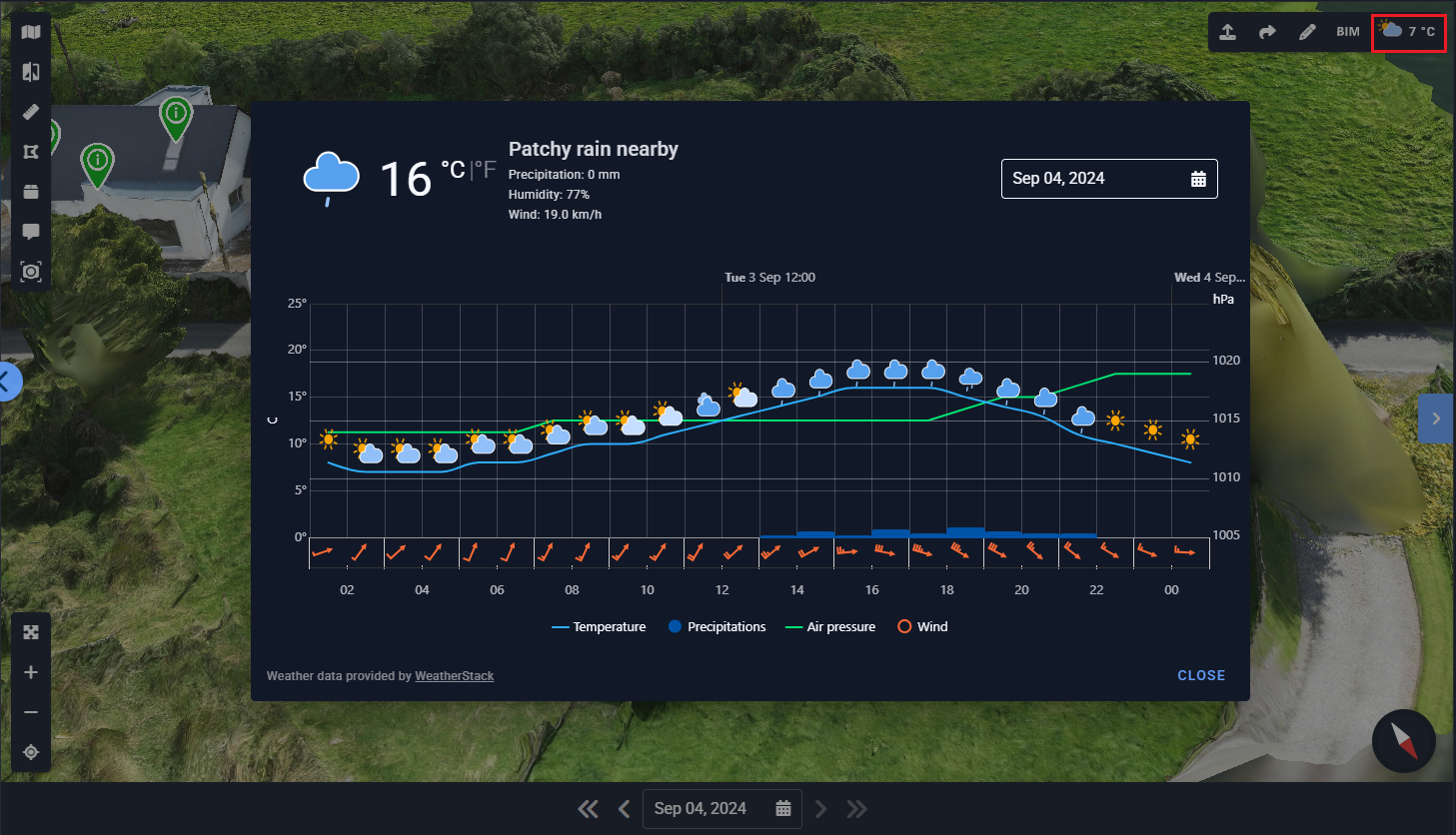
⚙️ Drone Settings
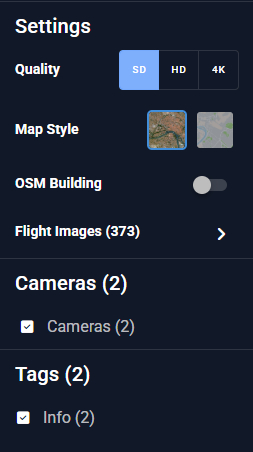
You can change the quality (SD, HD, 4K) of the drone image.
The change of quality can be noticed when you’re zoomed out from the model. Turning on 4K quality means you want the best possible quality (similar to the zoomed-in one) everywhere on the model. But, this puts a lot of strain on your machine, so use it with caution.
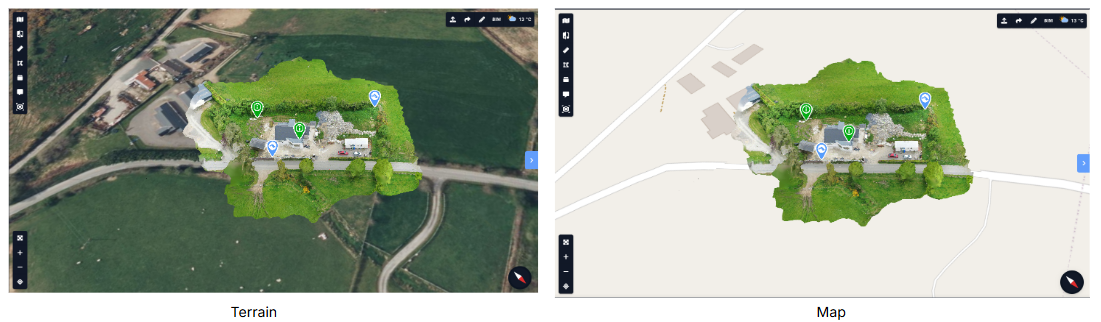
You can change the background map style.
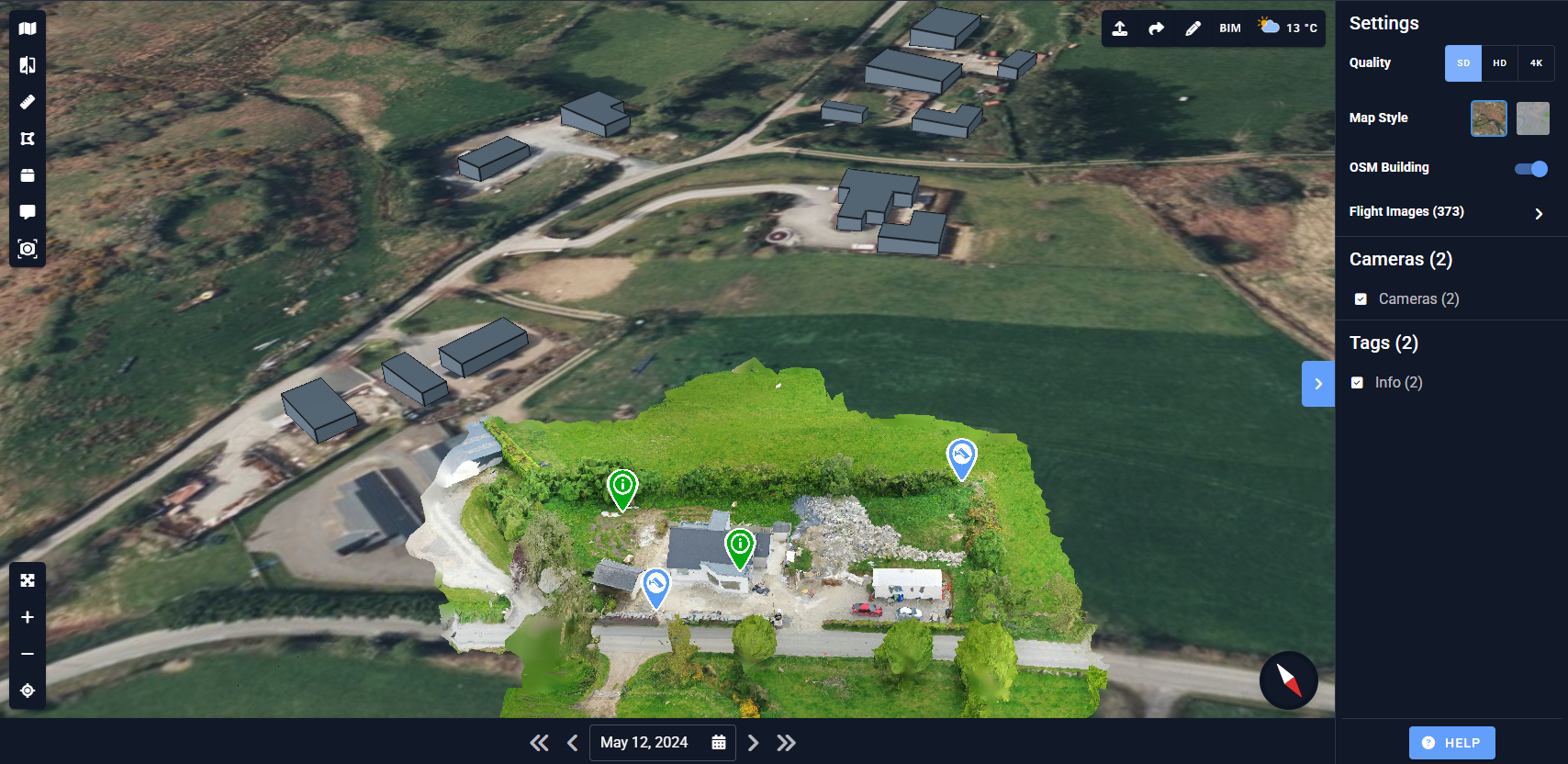
If you would like to see the surrounding buildings in 3D, toggle ON the OSM (Open Street Map) feature.
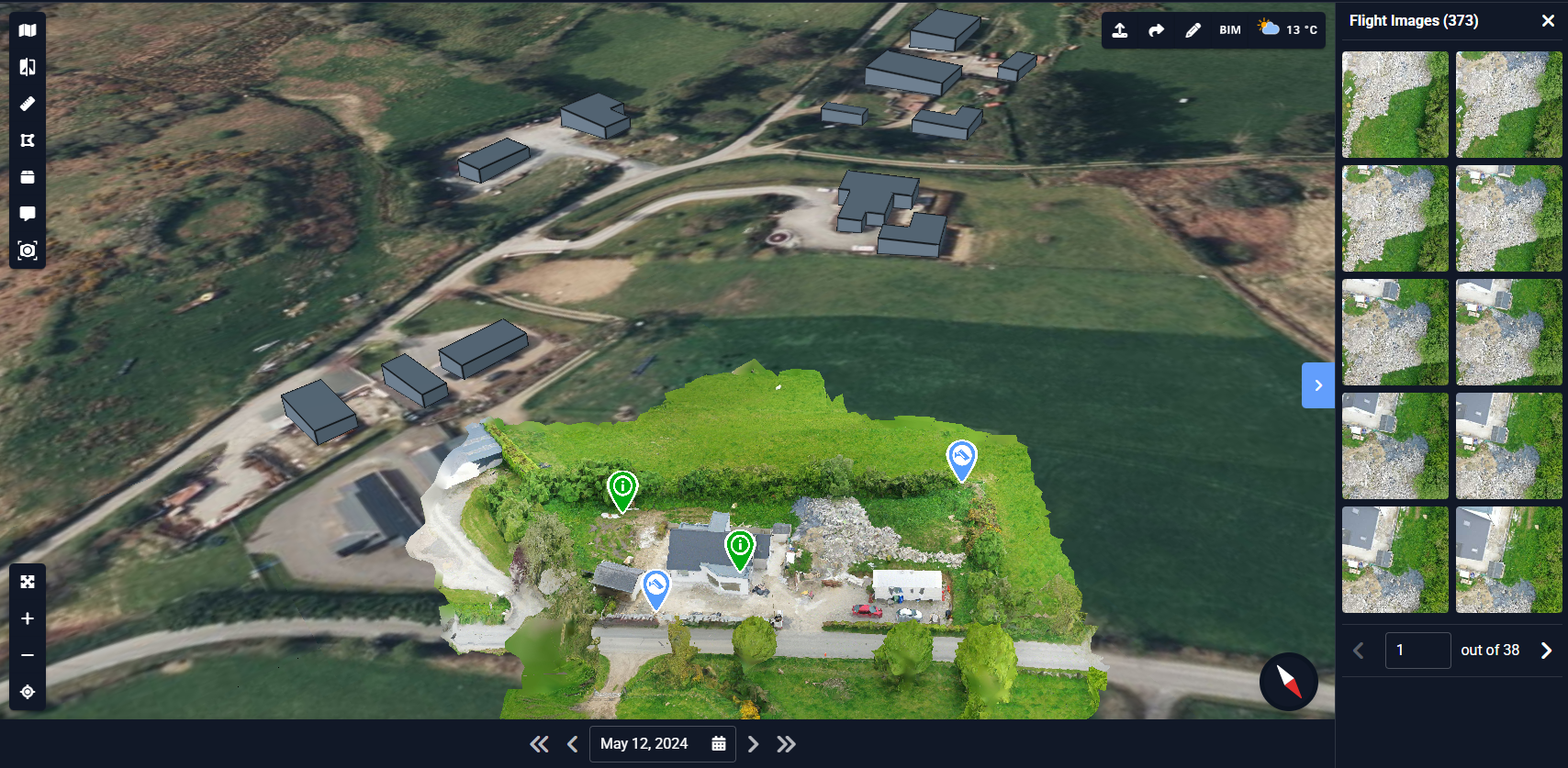
To view all the flight images, click the arrow beside “Flight Images”.
The total number of images is displayed.
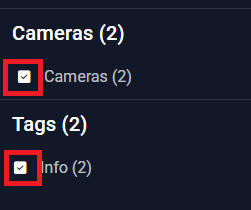
If you would like to see the drone flight clearly without occlusions, you can hide the camera markers and tags by unchecking the box.
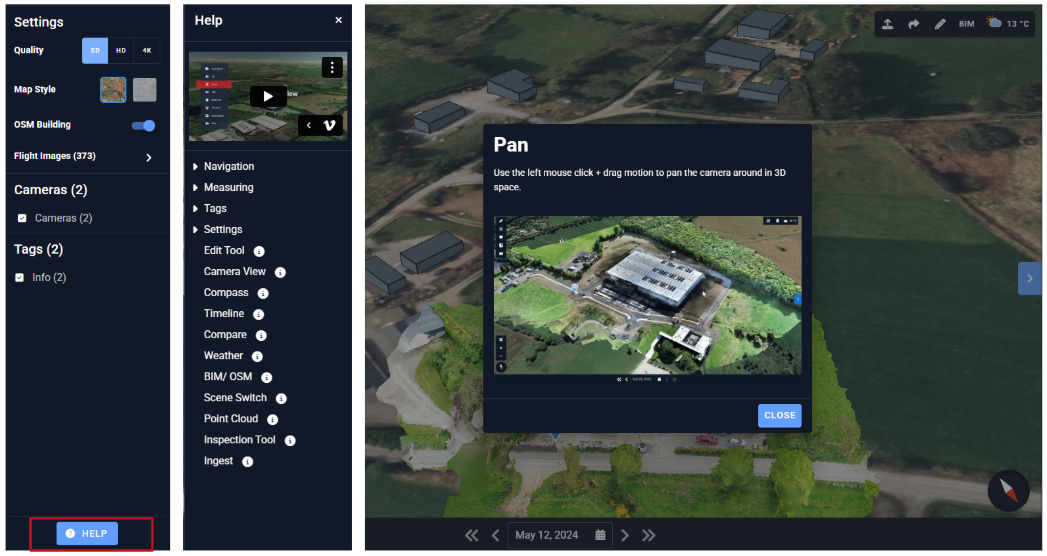
A help button is available on the right-side panel anytime you need info on the features.
☑️ Optional Features
View your site/floor plans in 2D mode.
Send the plans to 3d@evercam.io so we can include them in the view.

2. We can support Point Cloud Models.
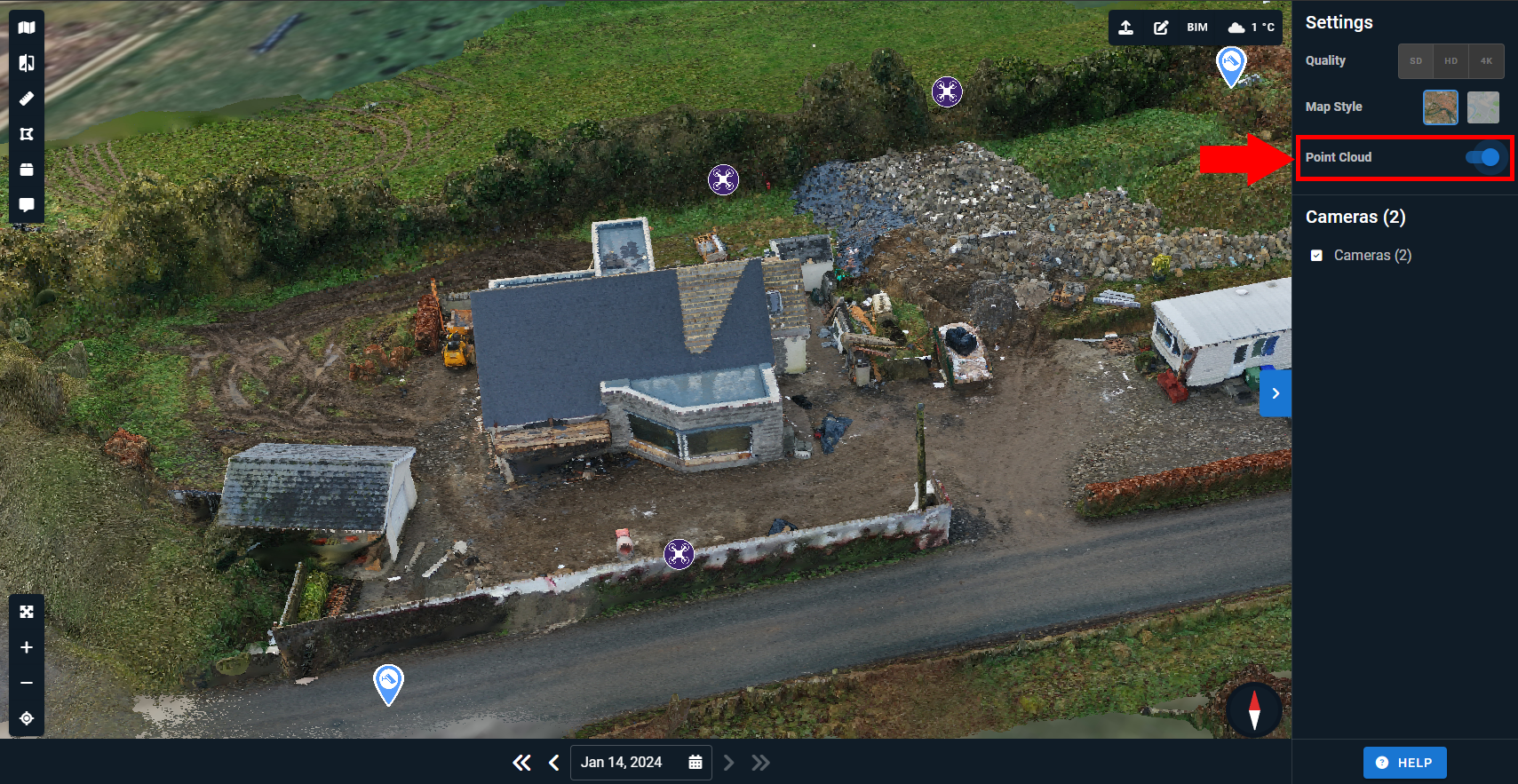
A point cloud is usually easier to stream, render, and overall, interact with. Since we won't be using Lidar cameras to make them, the high-level accuracy that Point Clouds are known for, will not always be guaranteed. This means their measuring operations like volume will still be linked to the 2D Digital Elevation Model (a 3D representation of a terrain's surface created from terrain elevation data), and will give similar results to Mesh-based models.
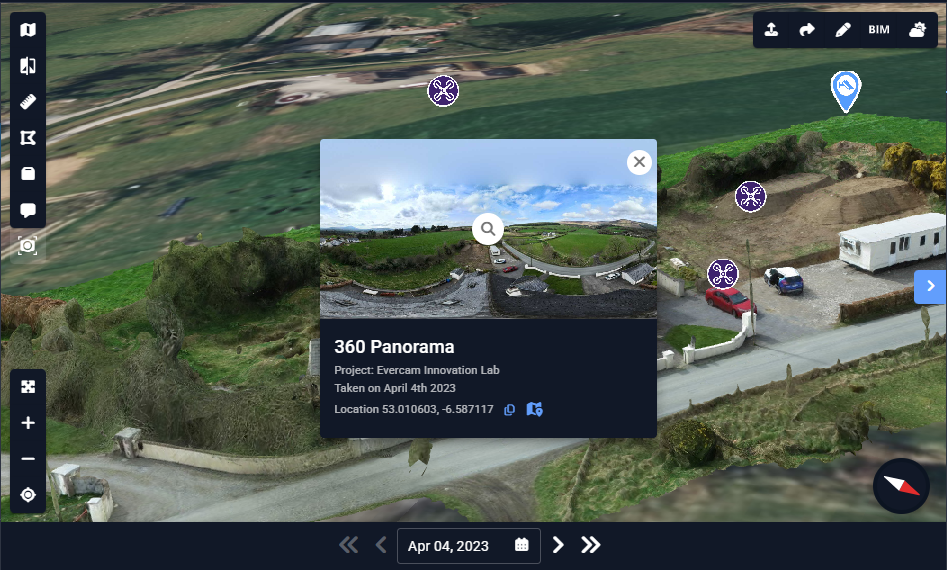
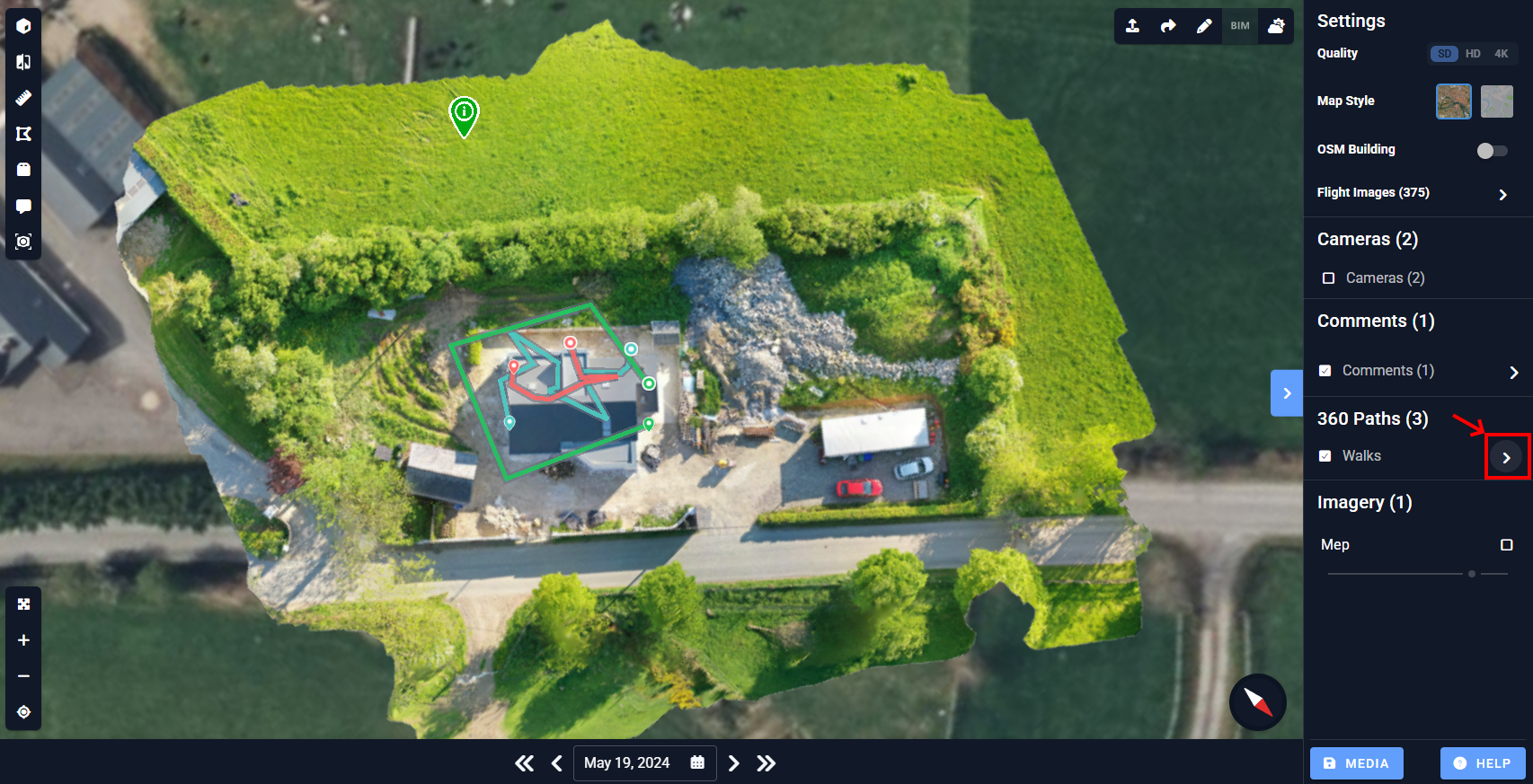
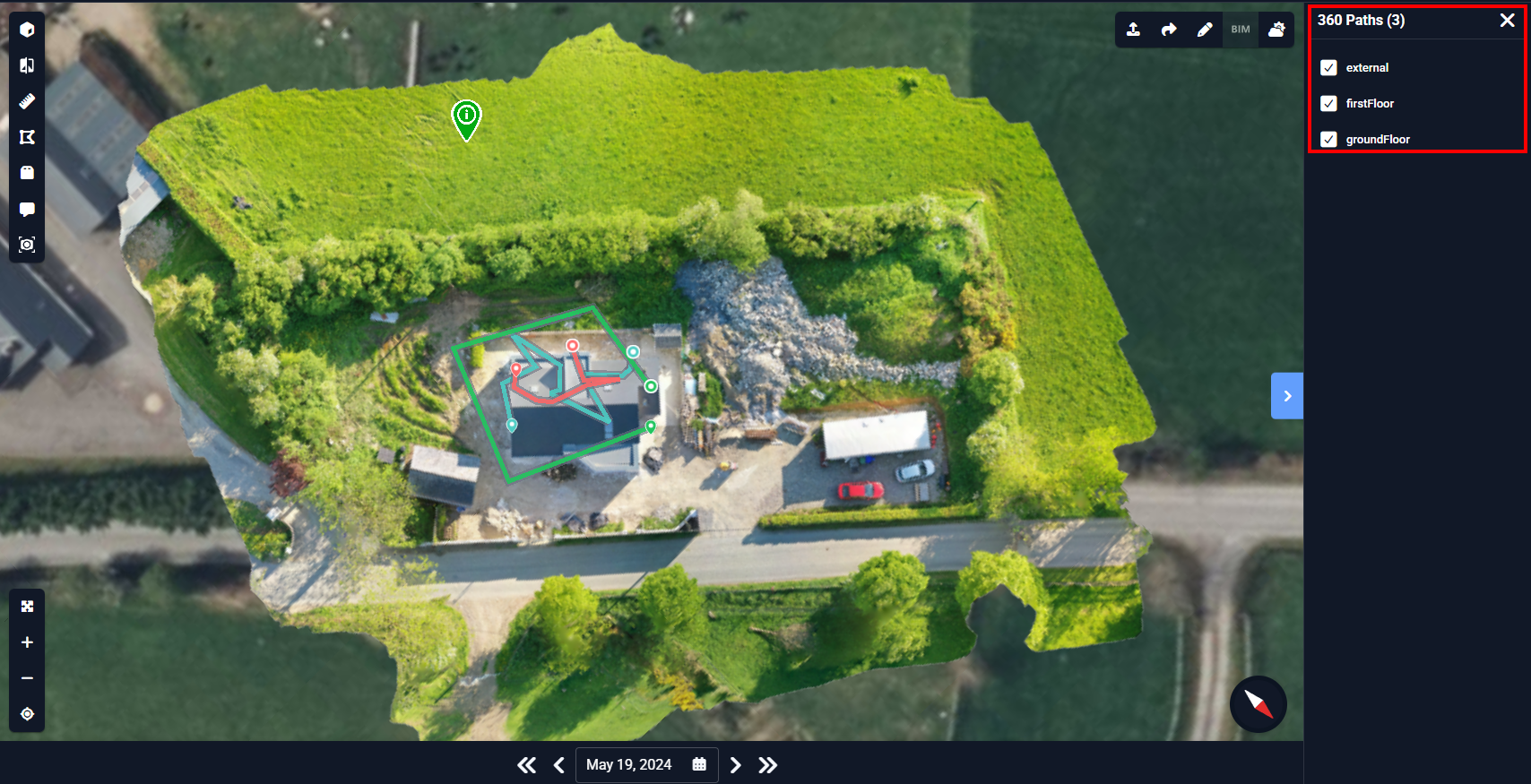
If you have 360 walks or 360 panorama shots, we can integrate them into the Drone view.
To view the 360 panorama view, click the violet marker to see the preview, then click the magnifying glass icon to view the actual 360 panoramic shot.
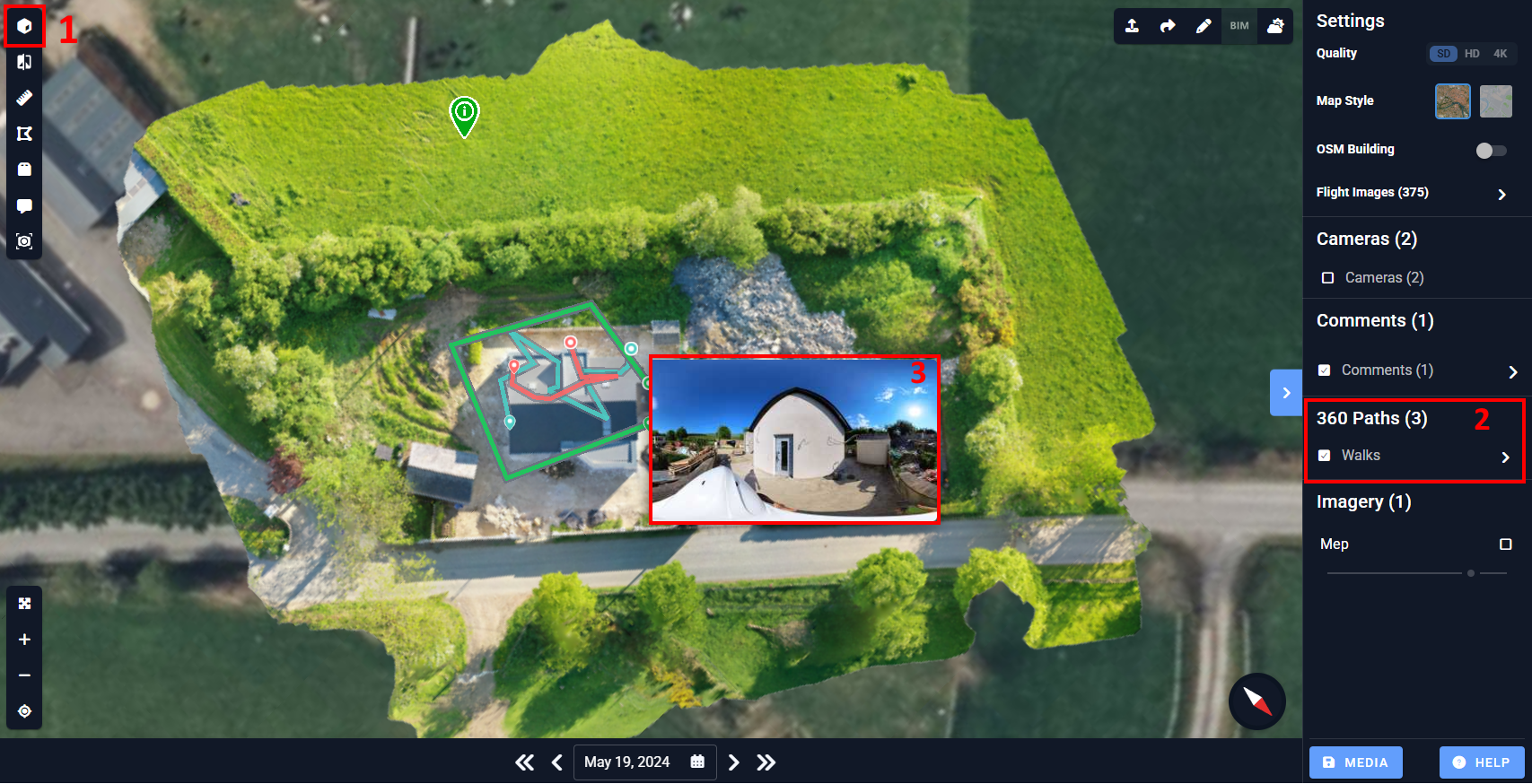
b. To view the 360 walk:
Click on 2D View
Click on the 360 Paths on the right sidebar.
Click on the arrow to show the available walks.
Select which walks you’d like to see on the 2D view.
Watch the Full Video for more information.