2026
October
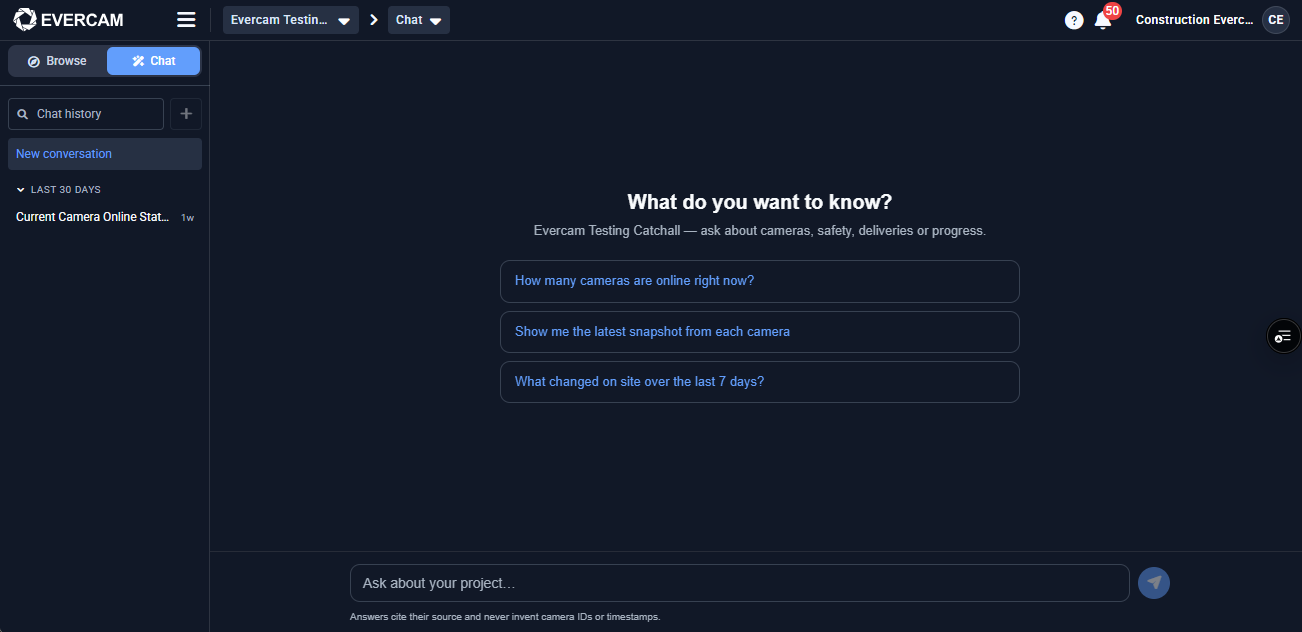
🤖 Chat: Get project answers without searching across multiple tools
Finding information across cameras, 360 walks, Gate Reports and weather can take time. The new project Chat lets users ask questions in plain English from a dedicated full-width page.
Answers include formatted text, useful User Manual links and PDF download options. Conversations are automatically titled, making previous answers easier to find.
Users can understand what happened on site more quickly without manually checking each part of Evercam.
⚡ Get Gate Report vehicle counts without waiting
Gate Reports with many cameras or a long history could take minutes to calculate vehicle counts. Counts are now prepared in an hourly summary and refreshed every 30 minutes.
Filters requiring exact underlying records, such as a particular number plate, continue to use the complete dataset.
Most Gate Reports now return vehicle-count information almost immediately.
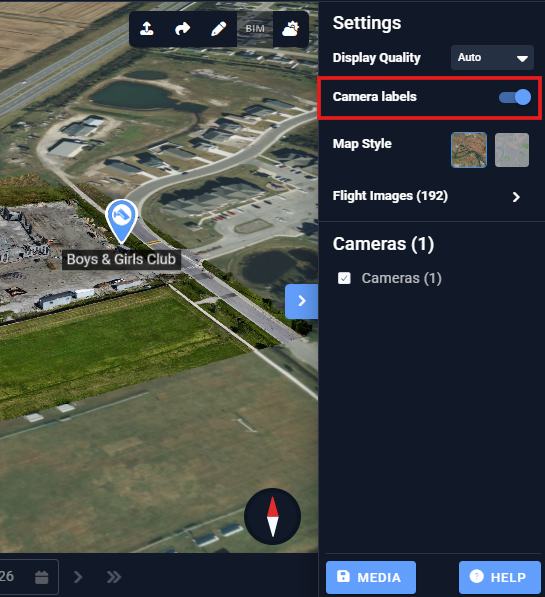
🏷️ Keep camera names visible in Drone View
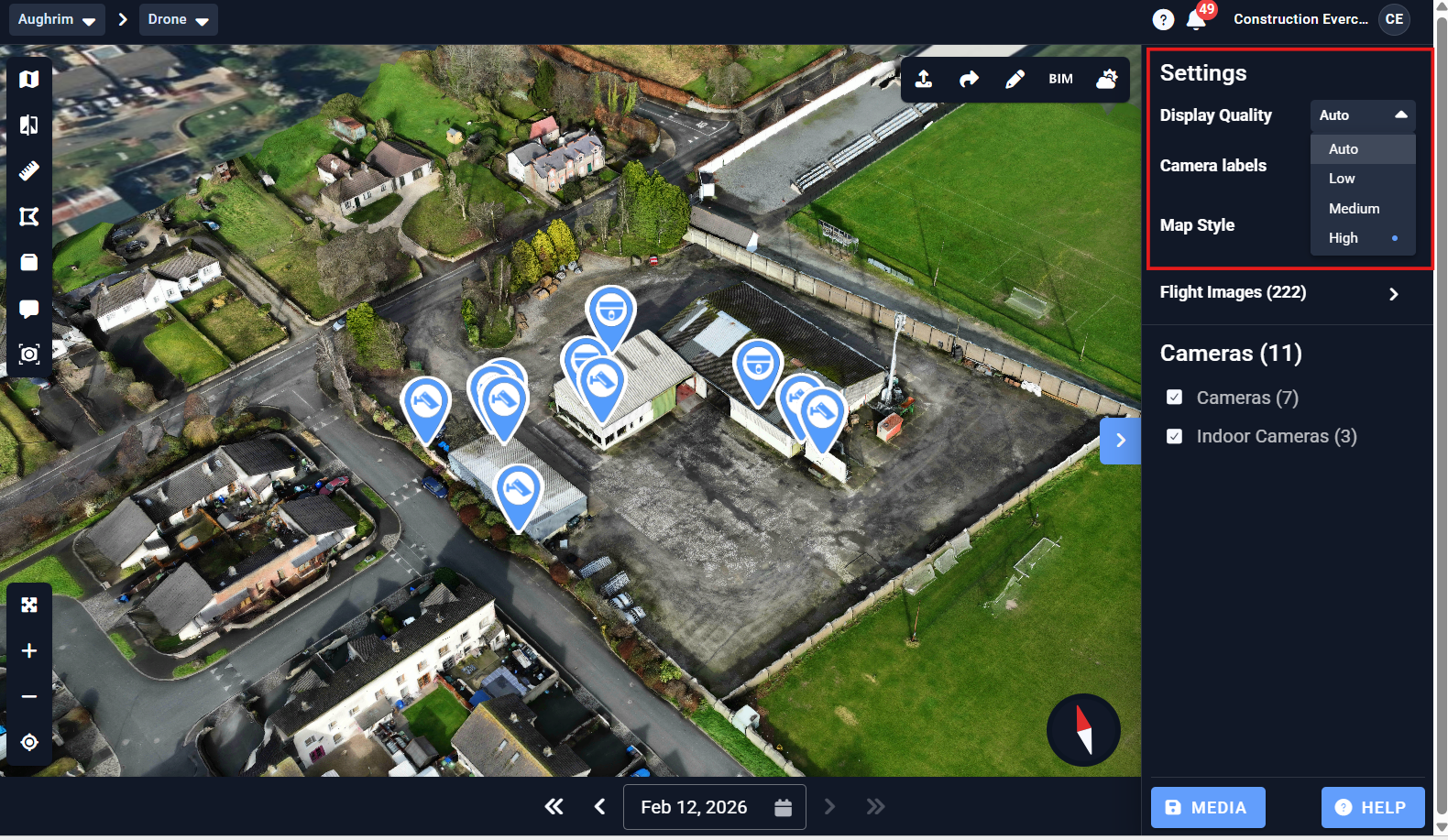
Identifying multiple cameras previously required hovering over each camera pin. A new Camera Labels setting keeps every camera name visible.
Labels follow the depth and size of their camera pins so the view remains clear while navigating the model.
Users can locate and distinguish cameras more quickly when exploring a Drone model.
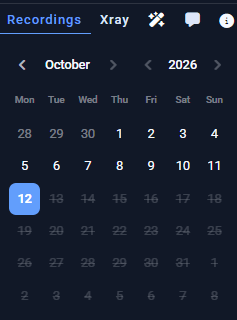
📅 Access recordings across month boundaries
The Recordings calendar previously made dates from the preceding and following months appear unavailable, even when they contained footage.
Those dates are now selectable directly from the current calendar view when footage exists. Available dates appear grey; only dates without footage are struck through.
Users can move between months and reach available footage with fewer calendar changes.
↘️ Dropdown menus keep the selected field visible
Dropdown menus across the Dashboard now open below their field instead of covering it.
Forms and settings are easier to understand because users can still see which field they are changing.
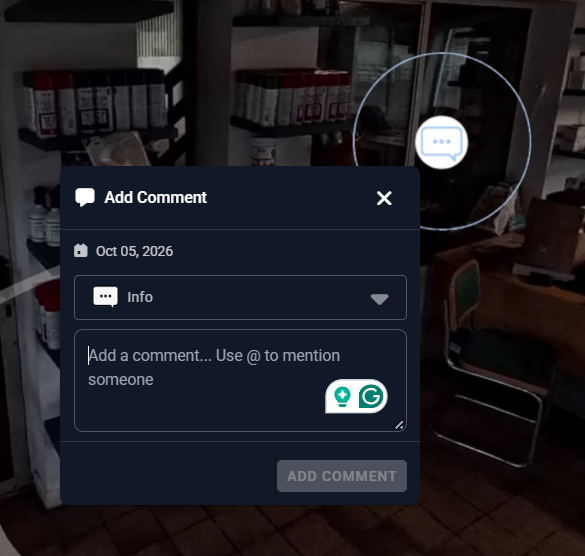
💬 Bring the right teammate into 360 discussions
Important site context can be missed when teammates need to locate the correct walk and comment themselves. Type @ in a 360 comment to notify an eligible project member by email and through the Dashboard, with a link directly to the discussion.
Search and label filters also make longer comment threads easier to review. Helps the right person respond sooner while keeping conversations connected to the relevant site view.
🚁 Smoother Drone viewing on every machine
Detailed Drone models can stutter on computers that cannot comfortably render the selected quality. The new Display Quality menu provides Auto, Low, Medium and High options. Auto measures performance during the first few seconds and adjusts the quality accordingly.
Keeps models responsive while still allowing users to choose their preferred level of visual detail.
🔐 Control which apps can access your account
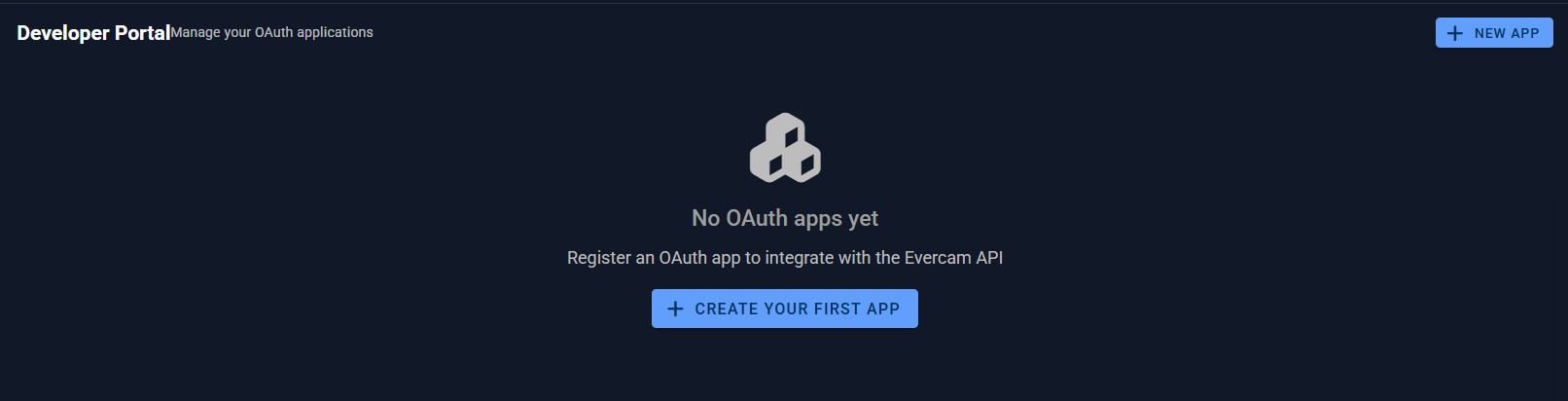
Third-party access was difficult to review or withdraw without assistance from Evercam. Account Settings now includes an Authorized Apps section showing each connected app, its permissions and when it was authorized. Access can be revoked individually or from several apps at once, with email confirmation when access is granted or removed.
Gives users direct visibility and control over the services connected to their Evercam account.
📅 More predictable date and time selection
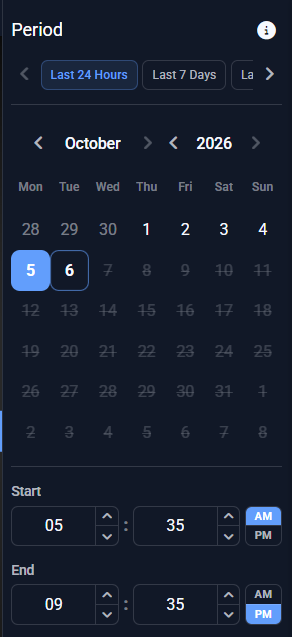
Different parts of the Dashboard previously used different calendar controls. Date ranges, 360, Smart Search, date-and-time fields and other supported screens now use the same picker. For date ranges, both the start and end dates must be selected before the action runs or the range is saved.
Makes date-based searches and configuration more consistent across Evercam.
⚙️ Easier-to-read automation filters
Automation selections such as cameras and reporting periods could look like separate cards rather than values within a field. They now appear as straightforward text.
Makes active automation settings quicker to scan without changing how automations are configured.

September
Drone
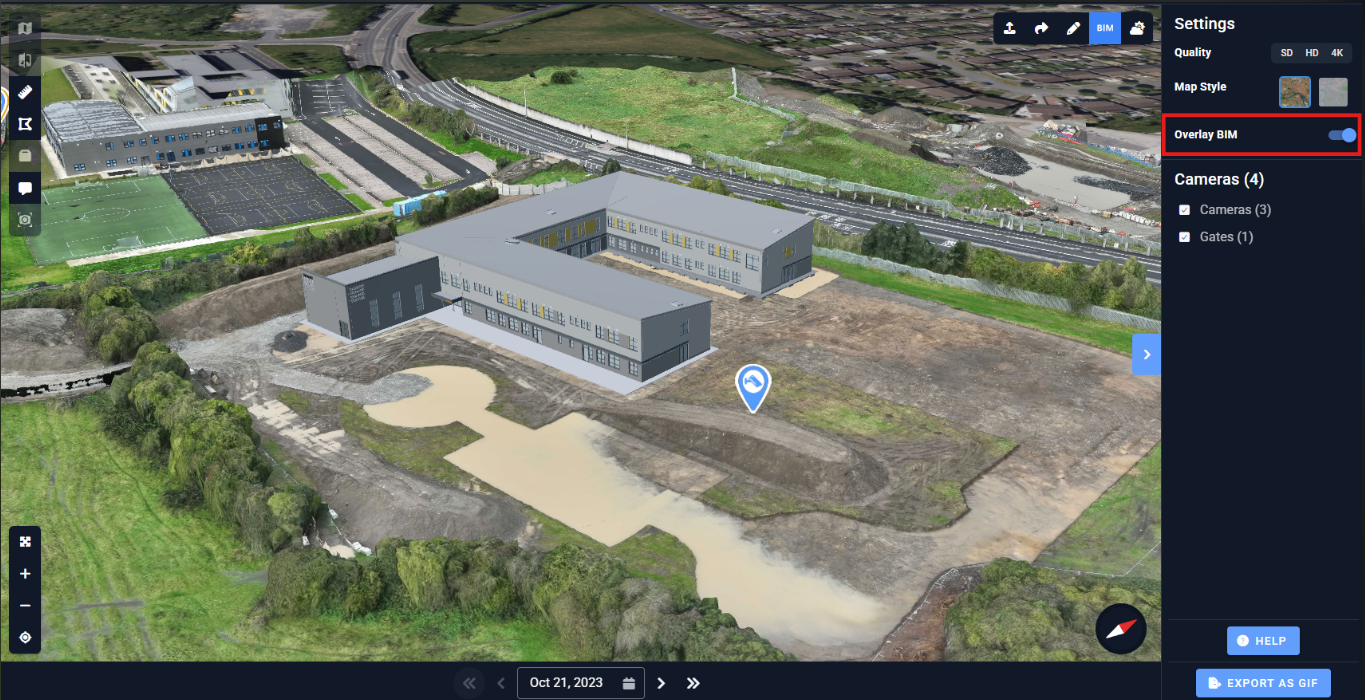
BIM Compare: We added a toggle on the sidebar to remove the compare slider and render the BIM on top of the Drone model.
Allows you to instantly switch from split-screen sliding to a direct, full-screen BIM overlay on top of your drone footage, giving you a clearer, unobstructed view of design models against real-world progress.
Drawings
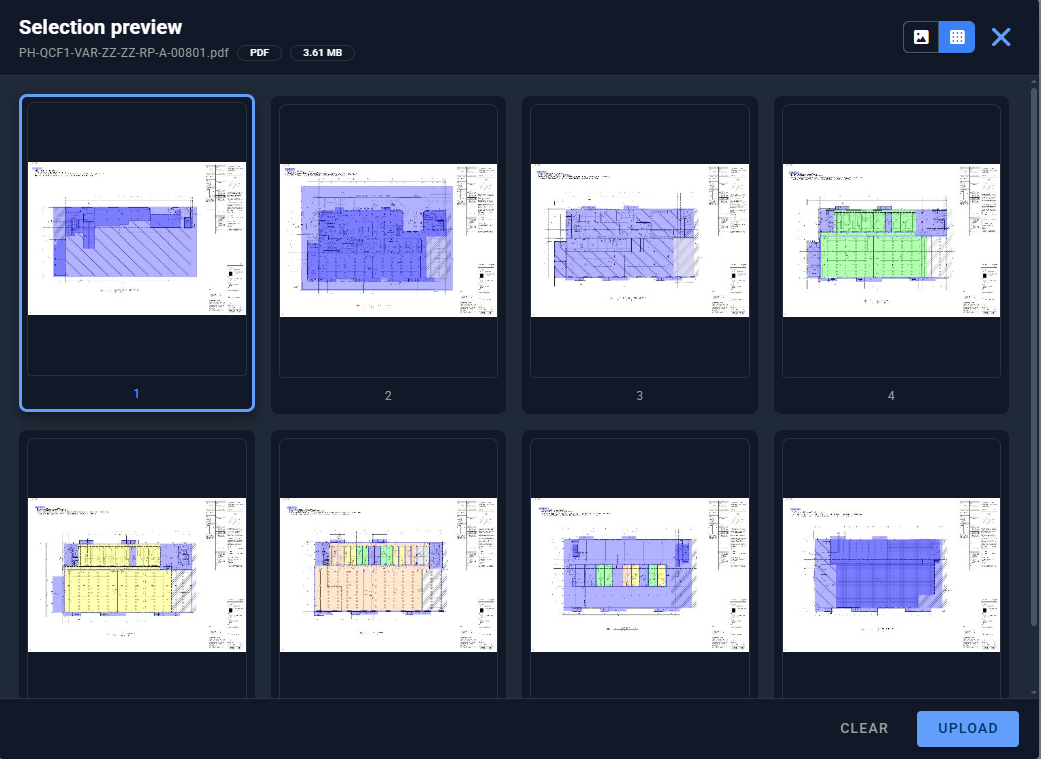
Page selection for a multi-page PDF upload is now available.
Lets you upload single sheets directly from multi-page PDF sets, saving time by skipping file splitting or uploading irrelevant pages.
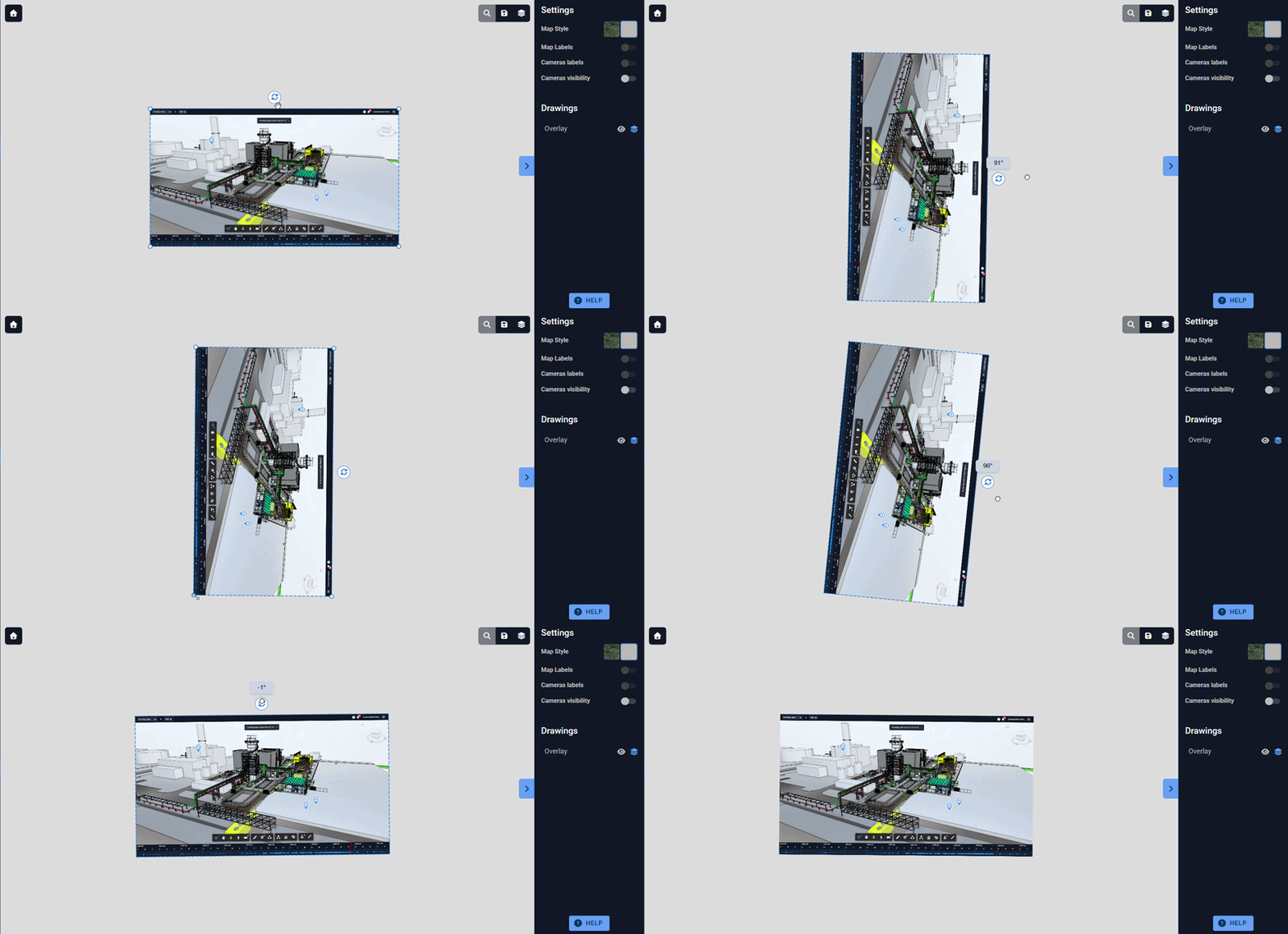
We deployed the new Overlay manipulation UI/UX.
From having two separate features (Scale & Rotate) actionable through their own buttons, we can now:
Intuitively enable the overlay edit mode by explicit click
Scale by dragging one of the dot-corners
Rotate by dragging the rotation icon (displays the rotation angle during rotation)
Quit the edit mode by selecting outside the overlay
Makes adjusting site overlays smooth and intuitive by letting you scale, rotate, and align visual overlays directly on canvas with real-time feedback, eliminating clunky toggles and separate button modes.
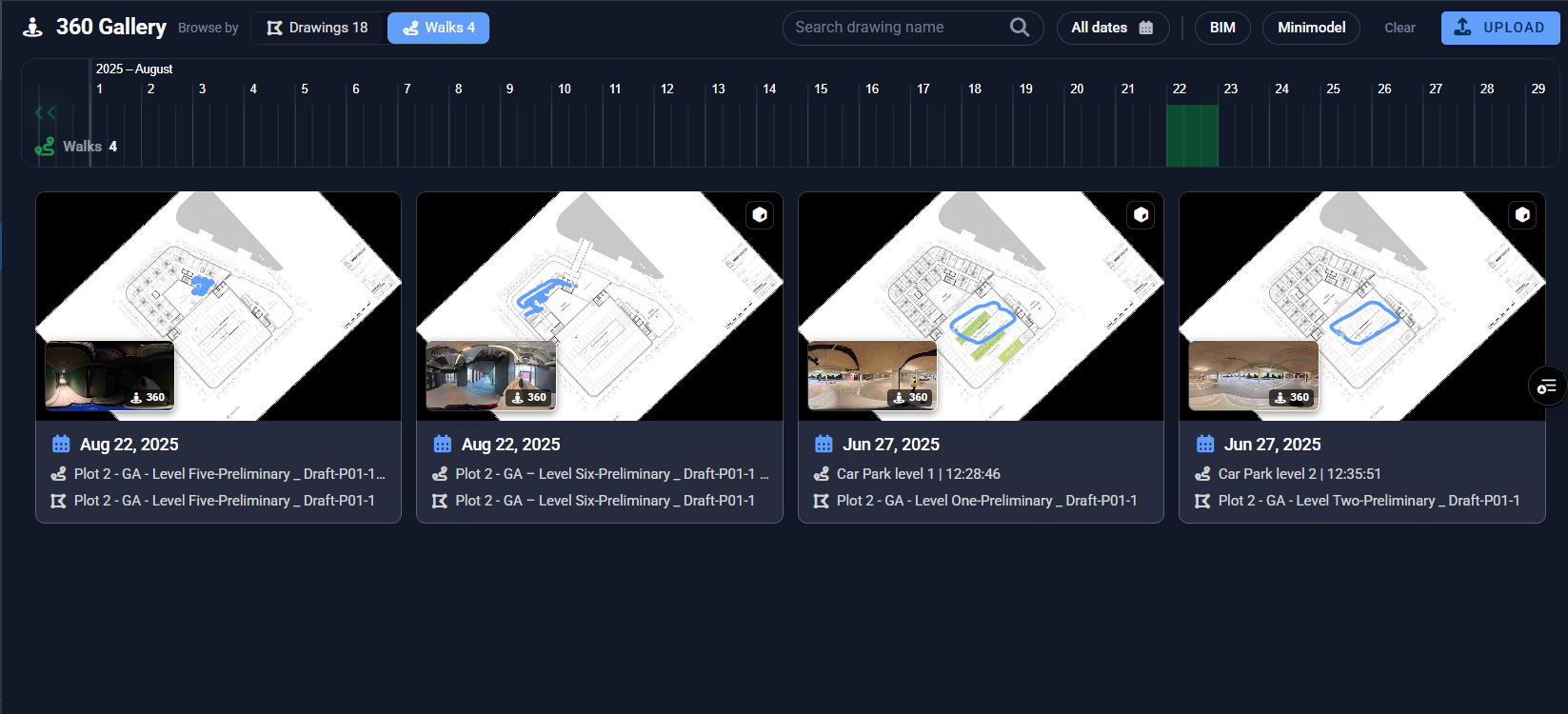
360
We deployed the updated 360 Gallery UI.
These changes are designed to help users understand what content is available, find the right capture faster, and move into the 360° experience with fewer steps.What’s changed:
- Browse by Drawings or Walks
Choose whether to explore captures grouped by drawing or view every walk individually. The Gallery opens in the Drawings view by default.See the last walk per drawing by default
All latest available 360 walk for every drawing is visible when you open the Gallery.
Improved timeline navigation
Timeline markers remain visible and centred, with a quick way to return to the default All-time view after zooming or panning.
More useful drawing and walk cards
Cards show the information needed to choose the right content, including walk previews, dates, capture counts, thumbnails, and available features such as BIM, Mini Model, comments, and flags.
Walks grouped by month
Walks within a drawing are grouped by month, making older and recent captures easier to find.
Clearer handling of drawings without recent walks
Drawings that were not walked during the selected period remain accessible but are separated and labelled “Not walked in this period.”
Faster access to individual walks
Walk cards open directly in the immersive 360° viewer with a single click.
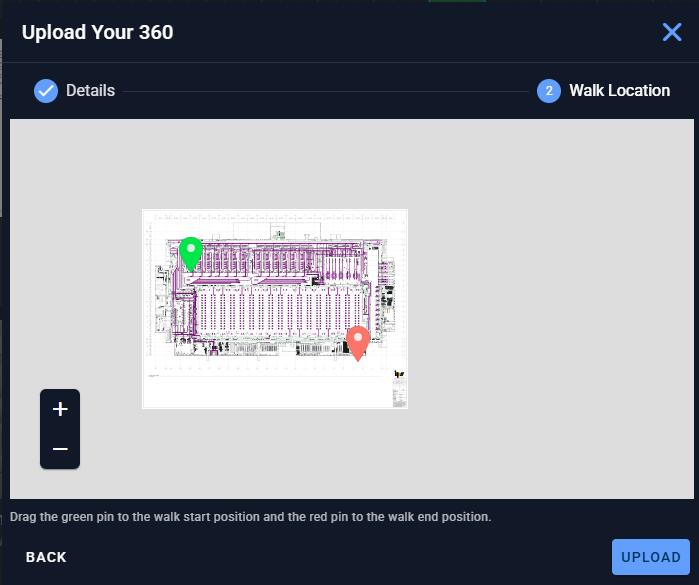
We added the ability to select Start/End positions when uploading from Dashboard. This will create the minimap automatically for walks uploaded from Dash, which was a manual task previously.
Eliminates tedious manual setup by automatically generating interactive mini-maps whenever you upload 360 walks directly from the Dashboard.
We updated the Date and Walk Selection Dropdowns.
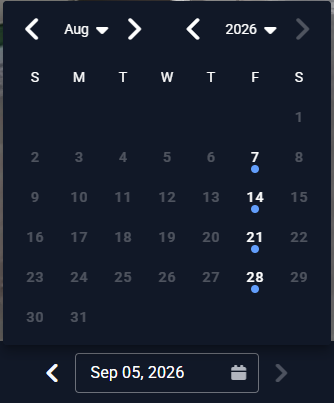
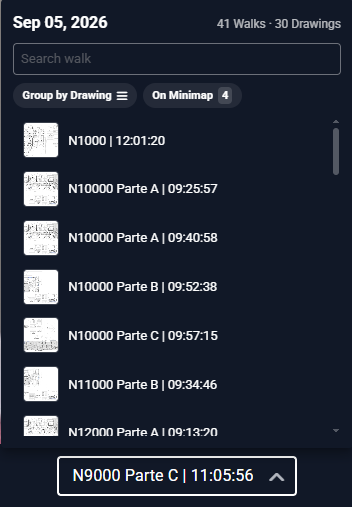
The Date Selector shows which dates (in white) have available walks. A blue dot on the date represents walks captured for the same drawing that is selected in the Walk Selector for easier comparison.
Example: if you're selecting "First Floor", the blue dots are the dates where "First Floor" was captured.The Walk Selector indicates which walk & drawings is currently in view. A search function is also available.
Makes comparing site progress effortless with visual blue dots that highlight exact historical walks for your selected drawing, alongside a search bar to instantly jump between views.
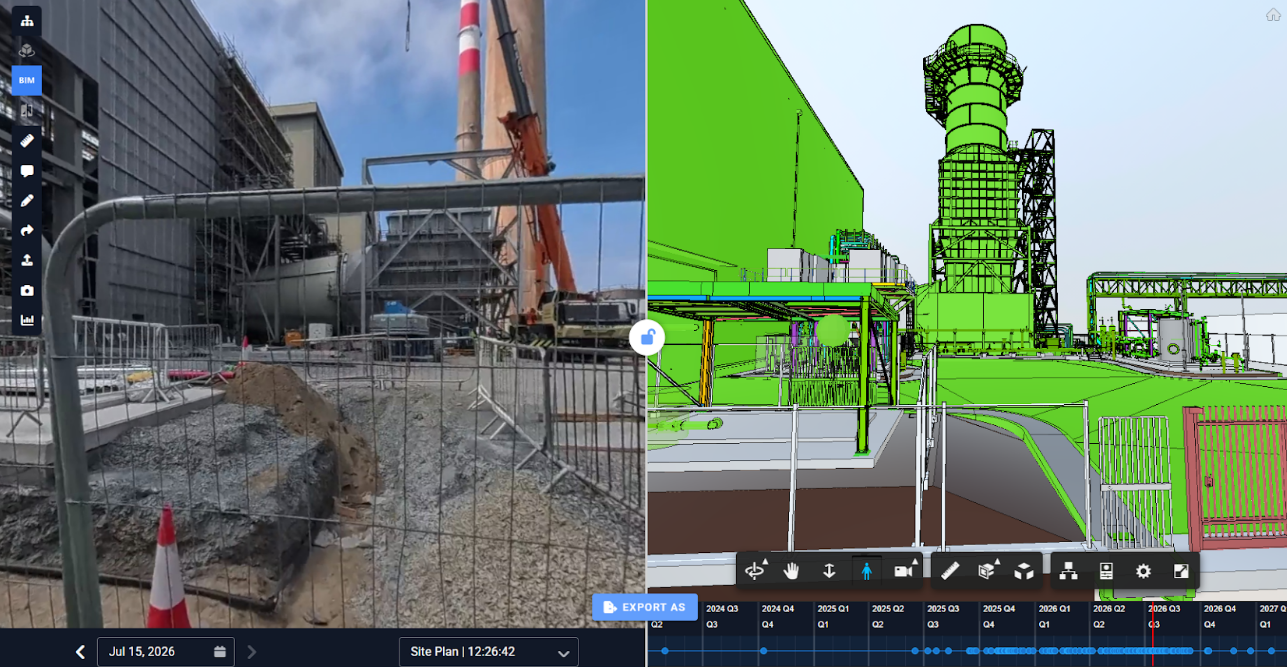
BIM Timeline on Forge 360 BIM Compare has been deployed.
Lets you compare 360 site photos against your BIM model at any specific milestone on the schedule, making it effortless to verify whether actual site progress matches your 4D plan.
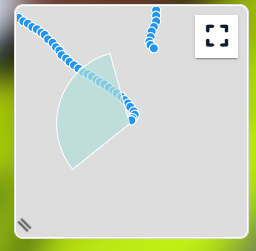
The Mini Map now shows a viewing cone that follows your direction and zoom level.
Keeps you oriented during walkthroughs by showing exactly which part of the site you are viewing.
🗒️ Faster AI observation reviews
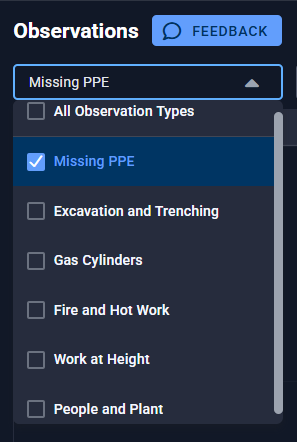
Projects with several AI detection types can be difficult to review as one mixed list. The Observation Type filter now includes every configured type, with Missing PPE selected by default.
Helps teams focus on the events that matter and move between review types with less filtering effort.
🎞️ Faster custom time-lapse setup
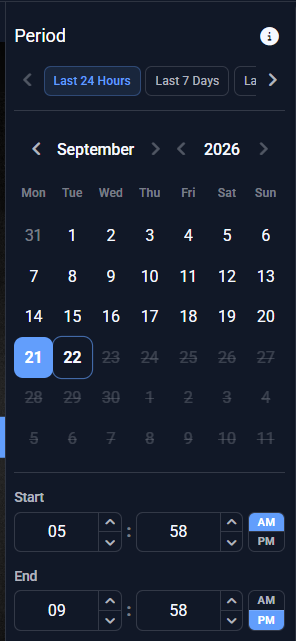
Setting a custom period no longer requires aligning separate start and end fields. Select the full date range in one picker.
Reduces setup steps and makes it easier to confirm that the intended project period is included.
📤 Clearer export logo selection
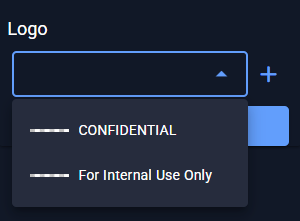
The logo list now opens below the selection field when creating Time-Lapse, Compare or BIM Compare exports.
Keeps the selected logo and available choices visible, making branded exports quicker to prepare.
🧭 Faster project navigation
Moving between related project areas no longer means returning to the project home. Breadcrumbs now link to project features, cameras and drawings from dropdowns, and Media Hub links back to the gallery.
Keeps your place and reduces the steps needed to switch tasks across a project.

🎥 Clearer next steps without cameras
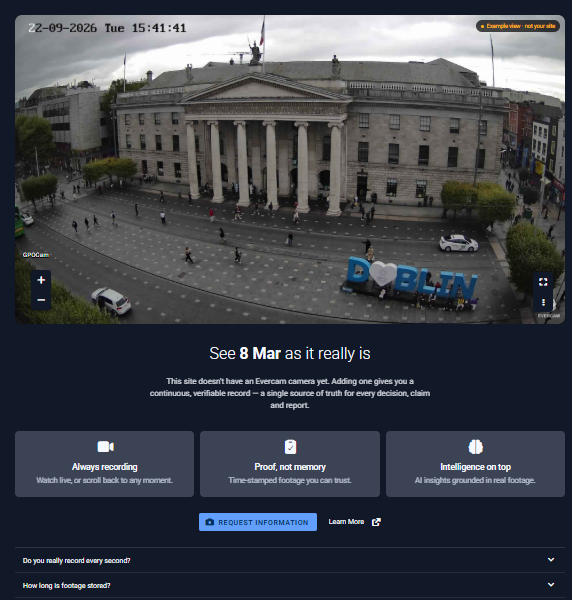
Projects without cameras no longer open an unrelated available product. They now show a Cameras information page with a Request Information action and confirmation.
Gives teams a clear way to understand camera coverage and ask Evercam about adding it.
📅 Valid Media Hub date ranges
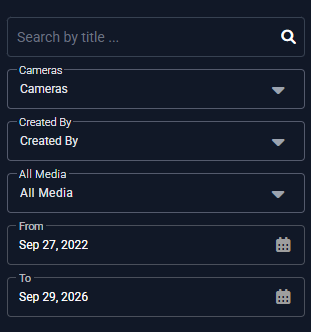
Conflicting date filters could return an unexplained empty result. Media Hub now labels the range From and To and prevents either date crossing the other.
Keeps searches valid and makes filtered results easier to understand.
👷 Clearer observation evidence
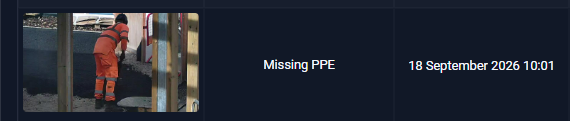
Wide evidence shots could make the flagged worker hard to identify. Each Observations row now centres the worker, while hover shows more surrounding context and click opens the full snapshot.
Helps reviewers understand the evidence faster without losing the wider site context.
🖼️ Consistent camera thumbnails
Narrow camera images in Project Settings could be difficult to scan alongside other cameras. They now sit centred on a blurred copy of the image, while failed images show a clear placeholder.
Keeps camera lists consistent and makes unavailable previews easier to recognise.
August
⌛ Timeline in Forge BIM
4D Timelines are now viewable in the Forge BIM Viewer & Camera BIM Compare.
Allows you to visualise scheduled construction progress against actual BIM models over time, making it easy to track delays and plan site logistics.

📺 Video Wall
Auto Preset Selection: The "Auto" preset can now be selected directly when creating a new widget, streamlining the setup process.
Cuts down setup time when building new video walls by letting you select the optimal layout preset in a single click during creation.
🌤️ Weather Automation
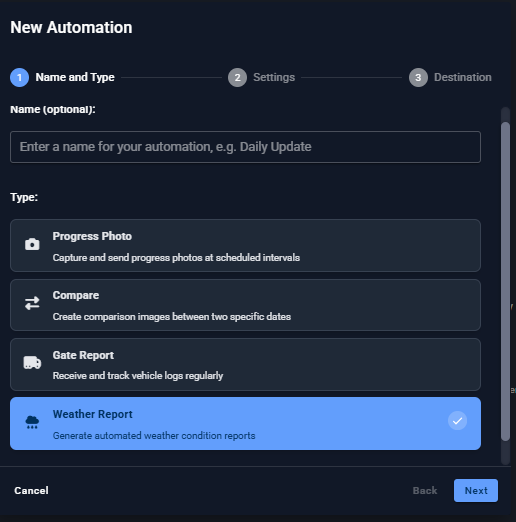
Scheduled Weather Reports: Weather automation is now officially deployed. Users can schedule both forecasted and historical weather reports to be delivered directly to their email inboxes on a regular schedule.
Delivers historical and forecasted weather data straight to your inbox on your schedule, keeping you prepared for weather-related site impacts without manual checks.
↕️ Reorder Cameras feature
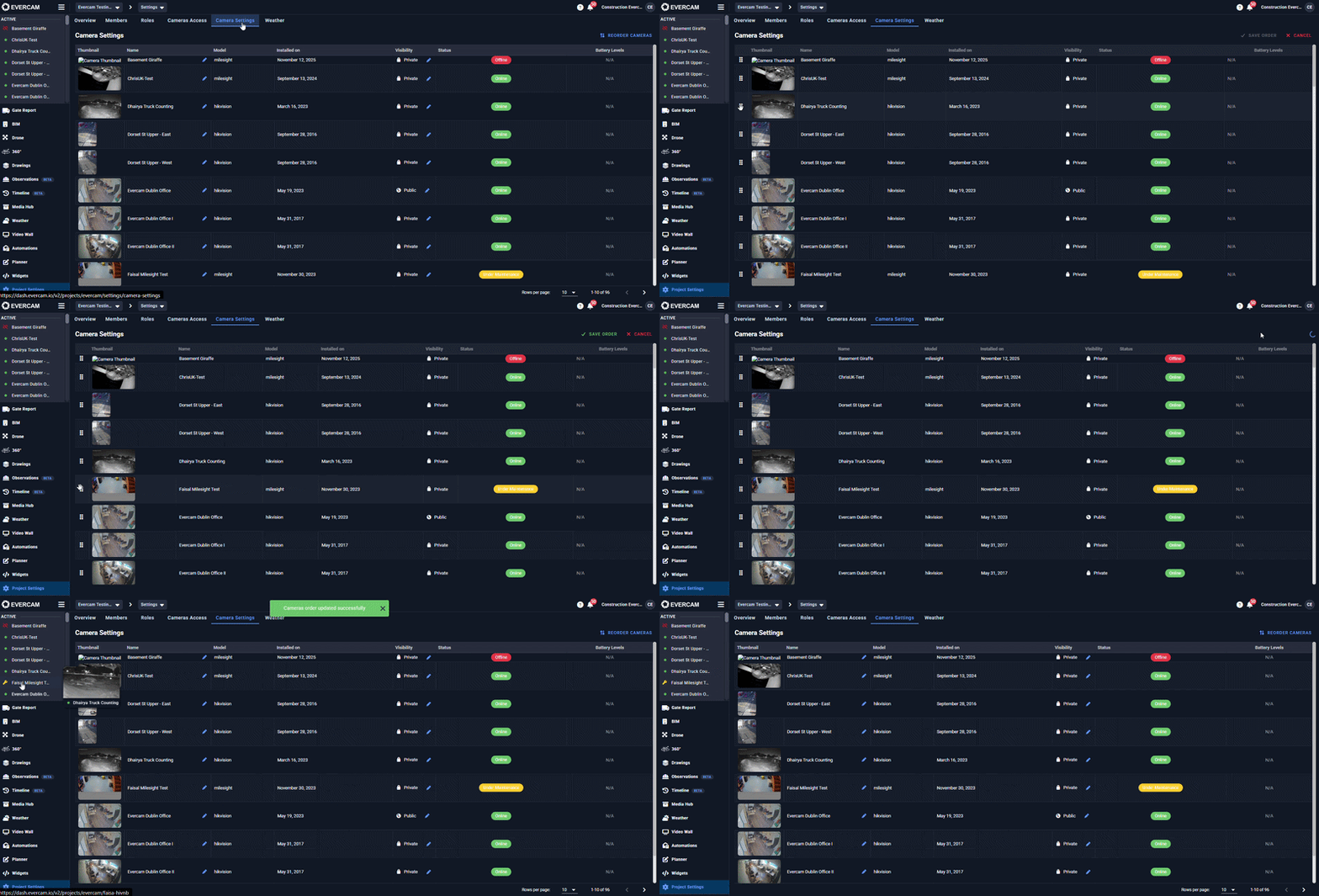
Custom Camera List Order: Project Admins now have full flexibility to reorder cameras on the Camera List.
How to use: Go to Project Settings > Camera Settings tab, and click the "Reorder Cameras" button at the top right of the table. Simply drag and drop the cameras into your preferred order.
Note: Updating the order here will automatically update the Camera List on the left-navigation panel.
Lets you arrange your cameras by priority, site zone, or physical walkthrough path, so your most critical feeds are always at the top of your navigation panel.
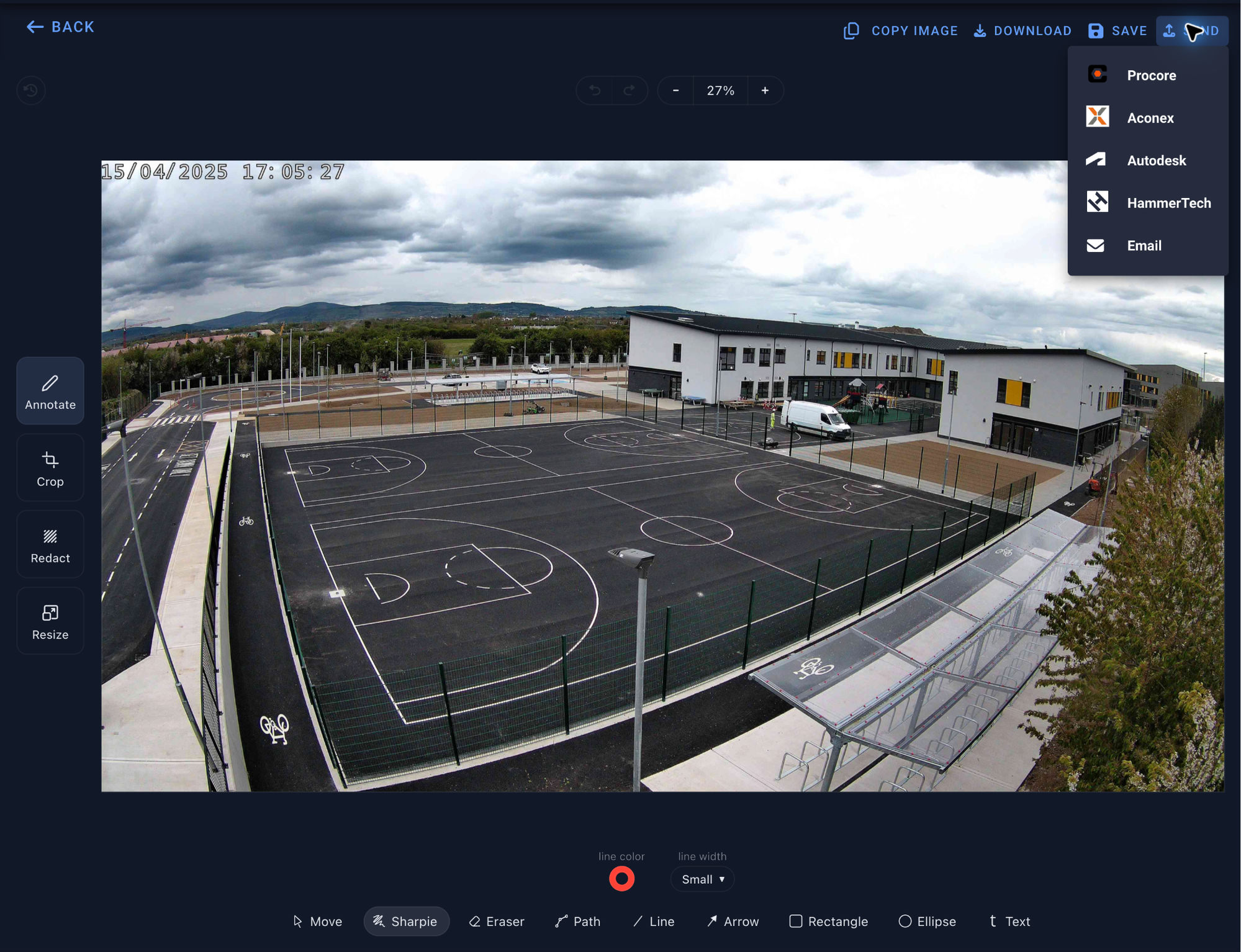
↔️ Hammertech Integration
Users can now create HammerTech Observations directly from Evercam — with a photo pulled straight from the camera feed. No jumping between tools.
Grab a camera image in Evercam → ✏️ mark it up → 📤 send it as an Observation to a chosen HammerTech project.
Each user links their own HammerTech account with: email, password, tenant (TNAT), and region. Then they're ready to send.
Saves time by letting you log safety and site observations directly to HammerTech with annotated Evercam photos without downloading files or switching between apps.
🗒️ Observations
We’ve launched Observations, a new place to review AI-generated site events in Evercam. Existing missing hard-hat and hi-vis detections have moved from PPE into Observations, where users can review the visual evidence, see why an event was flagged, and mark it as Valid or Invalid.
This release starts with PPE observations, giving us a broader foundation for reviewing AI-generated events across a project.
Gives you a dedicated workspace to verify AI detections with visual evidence, allowing you to quickly confirm or dismiss safety flags with single-click "Valid" or "Invalid" tags.
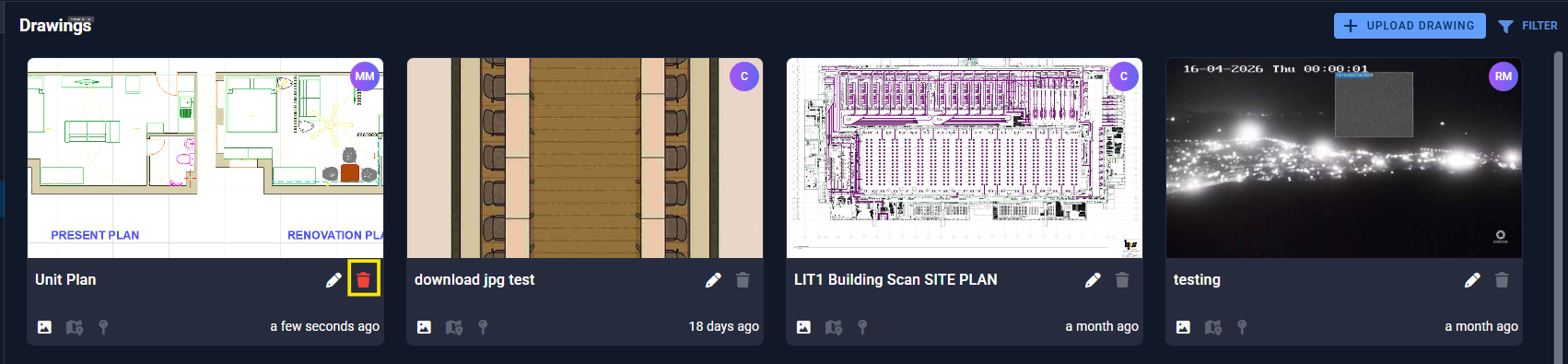
🗑️ Delete Drawings
Users who upload a drawing can now delete it if no walks are attached to it.
Allows you to remove outdated or incorrectly uploaded blueprints immediately, keeping your drawing library clean and free of clutter.
📄 Media Hub
File Name Retention: When uploading a file, the system now automatically retains the original file name, making file management and identification much easier.
Saves time spent re-identifying uploaded files by preserving your exact file names, keeping project documents recognizable at a glance.
July
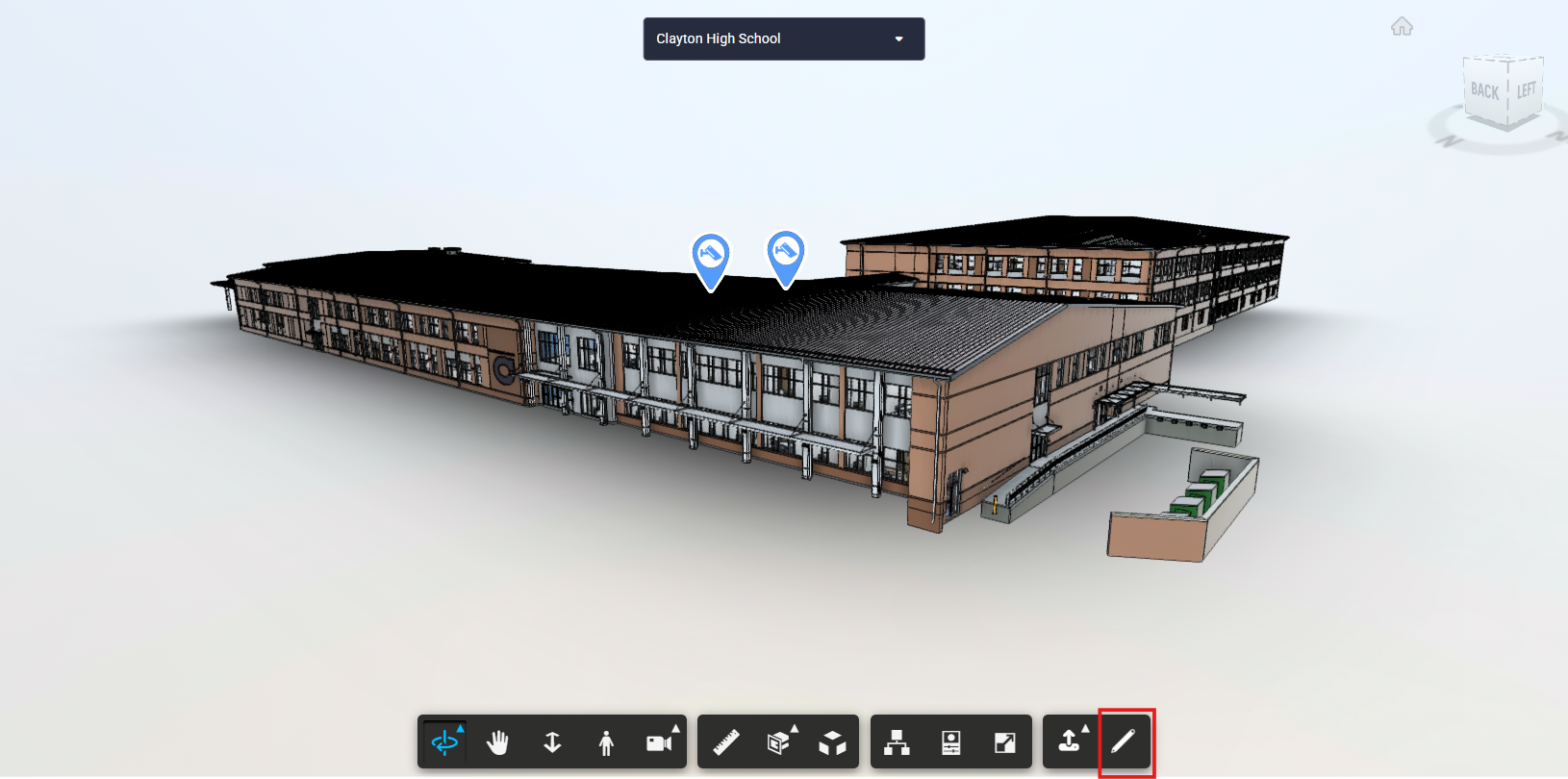
🏢 Forge BIM View
We added the Mark-up tool which lets you annotate and highlight specific spatial details directly on 360/BIM models, making visual feedback and design callouts crystal clear for team members.
Facilitates faster cross-discipline collaboration between field crews and design teams, reducing rework caused by miscommunication on project blueprints.
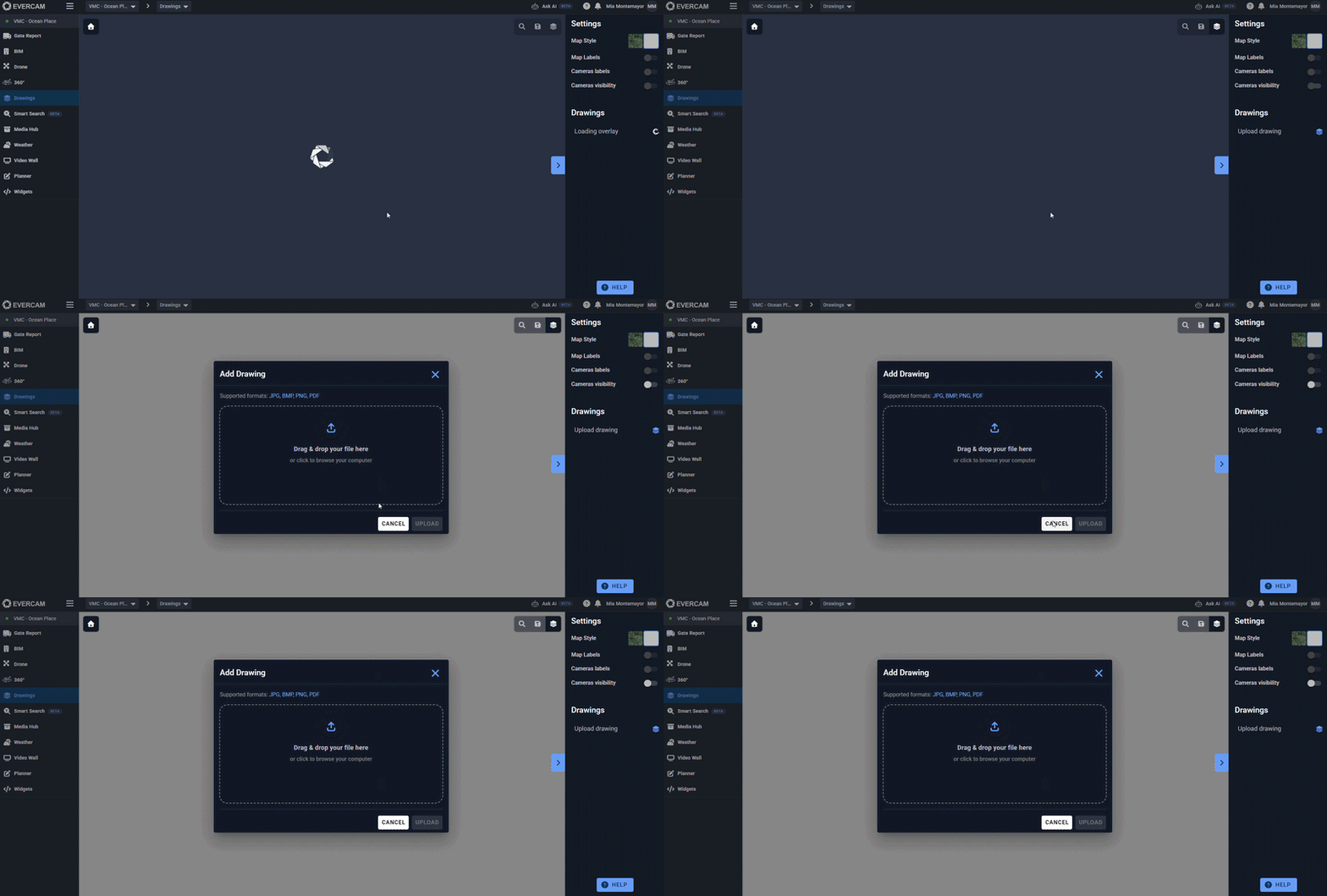
🖍️ Drawings
Improved the UX by opening the upload pop-up once the Upload button is clicked eliminating unnecessary steps, letting you get new drawings into the system instantly.
Removes interface friction to speed up document intake, helping teams maintain up-to-date site plans across the platform.
🚶 360 Gallery & Viewer
Getting into a 360 walk is now faster. Hovering over a walk line still shows a thumbnail, but clicking the line now opens the 360 Viewer directly, removing the extra preview
step.
Cuts out unnecessary clicks so you can jump straight into full-screen 360 site walks in half the time.
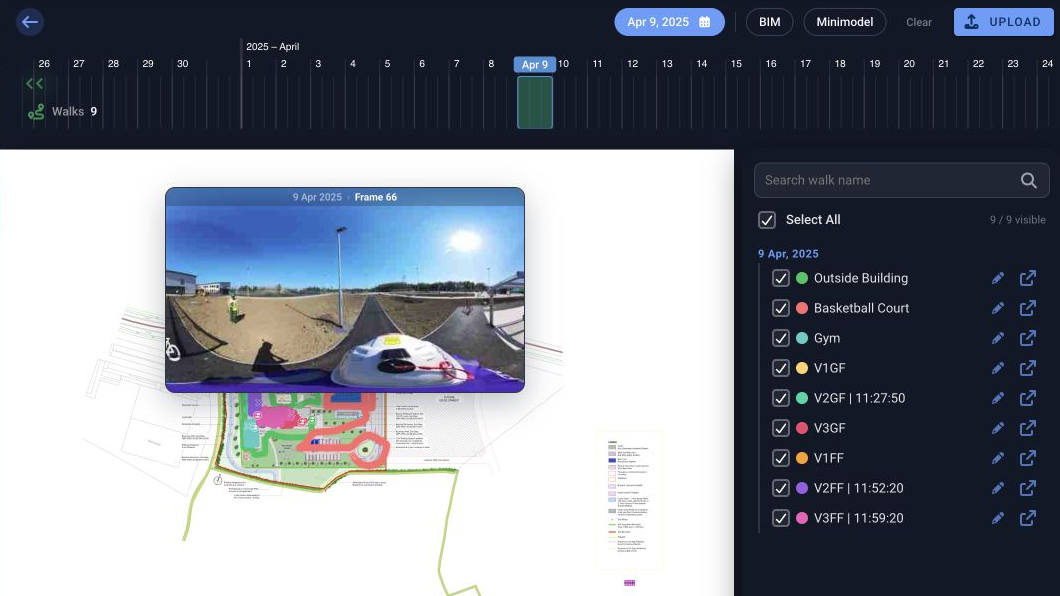
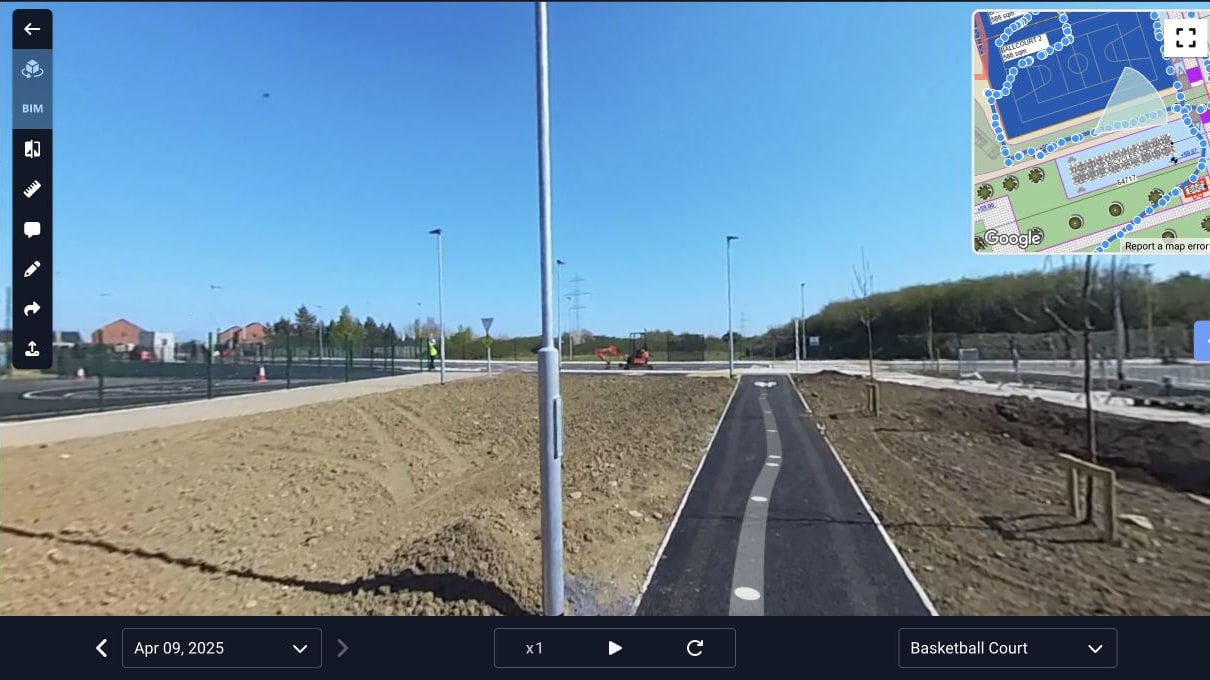
Inside the viewer, guidelines now connect markers, movement between markers is smoother, and performance has been improved on phones and tablets.
Makes virtual walkthroughs feel natural and responsive on mobile devices, with clear visual path lines connecting markers so you never lose your orientation.
📱 Evercam iOS app
SSO issue fixed and deployed.
Restores seamless, single-click access so you can log in instantly without repeated sign-in errors or password friction.
June
📱 360
The mobile and tablet touch experience for 360 view is fixed and ready. Users can now pan, zoom, rotate, and tap markers to navigate the 360 walk effortlessly.
Delivers a smooth, natural touch navigation experience on phones and tablets, letting you inspect full site walks with effortless panning, zooming, and marker selection on the go.
✏️ Mark-up Tool
We’ve switched our underlying library from Paintera to Pintura.
What to expect:
A cleaner, modern UI.
Enhanced performance and new editing features.
Gives you a faster, more responsive image editor with a sleek modern design and expanded annotation capabilities for clear visual reporting.
May
🏢 Forge BIM Update & Upload Overhaul
Updating a model now automatically overwrites the existing file instead of incorrectly duplicating it as a brand-new model in the viewer.
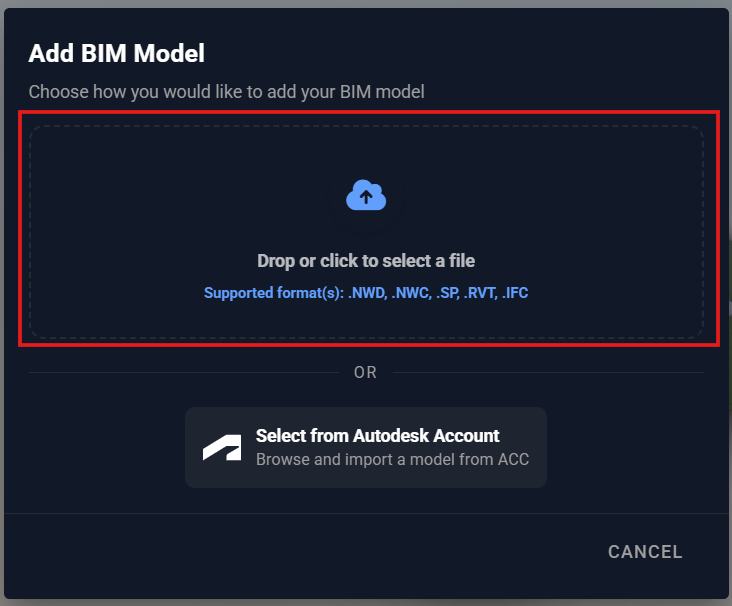
The platform now preserves the original file name of your BIM model rather than replacing it with generic labels like "Model 01".
Users can instantly drop in a local file (
.NWD,.NWC,.SP,.RVT,.IFC) or pull directly from an Autodesk Construction Cloud (ACC) account.
Read more here: BIM Model Ingest Update Guide
💬 Recordings Comments
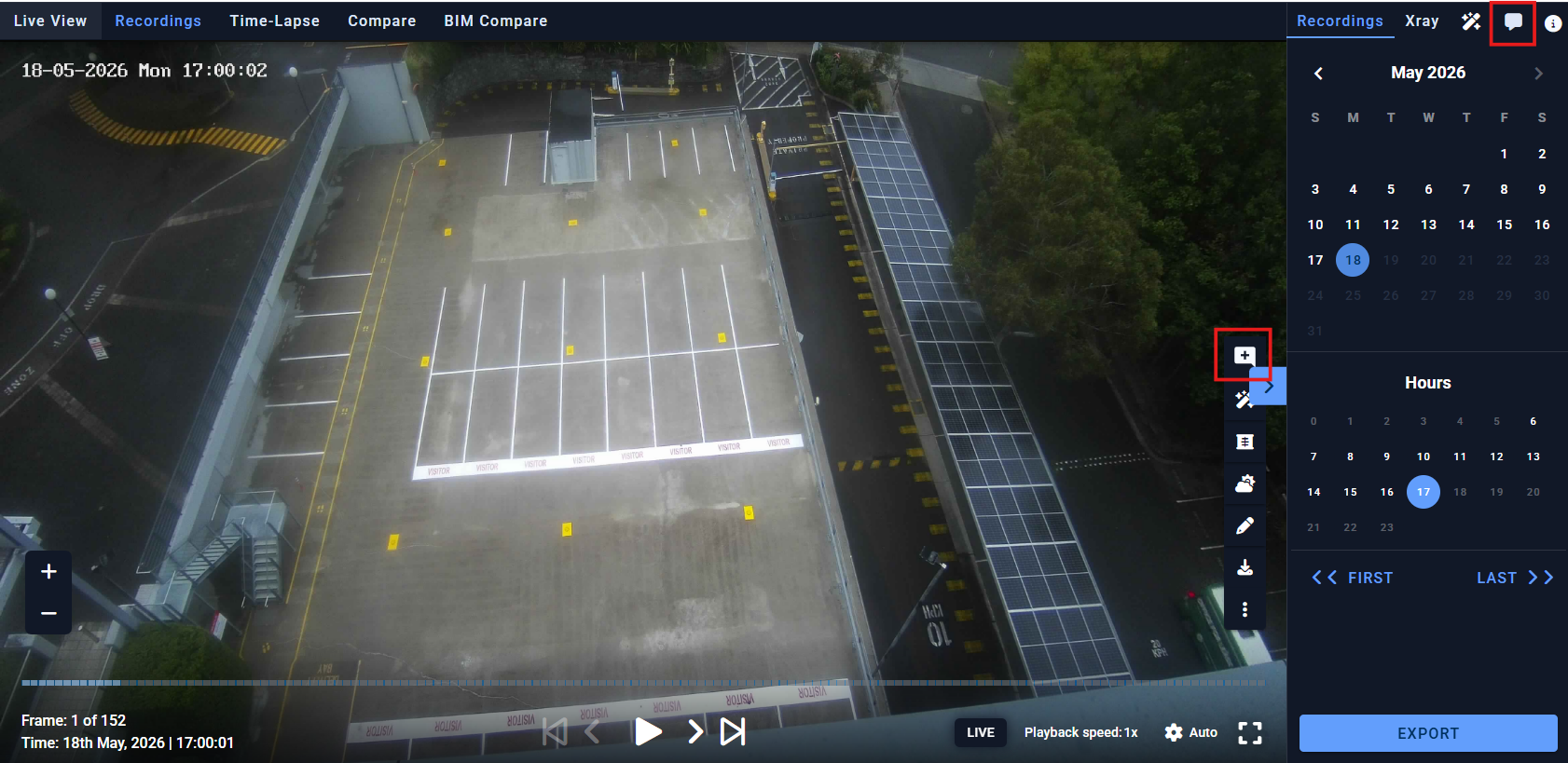
We added the ability to place comments on recorded footage.
Enables project administrators to drop comments and log site issues directly onto specific video timestamps, establishing a single localised source of truth.
⛔ Smart UI Safeguard (Gate Report & PPE Exports)
The export button is now disabled when no data is available for a selected timeframe.
Eliminates frustration and wasted time by preventing clicks on inactive buttons that would result in empty files.
📨 Mark-up Tool "Send to Email"
Users can now mark up a camera snapshot and email it directly from the platform without downloading it first.
Streamlines workflow by letting you annotate and send critical visual updates in seconds without clogging local downloads.

👁️🗨️ Members Table "Last Seen" Column
Added the "Last Seen" timestamp to user list PDF and CSV exports.
Provides immediate visibility into user activity levels directly inside exported audit and access reports.
April
🗺️ Map View
We enabled Map View for all users again. The button can now be found at the upper right hand side of the All Projects home page.
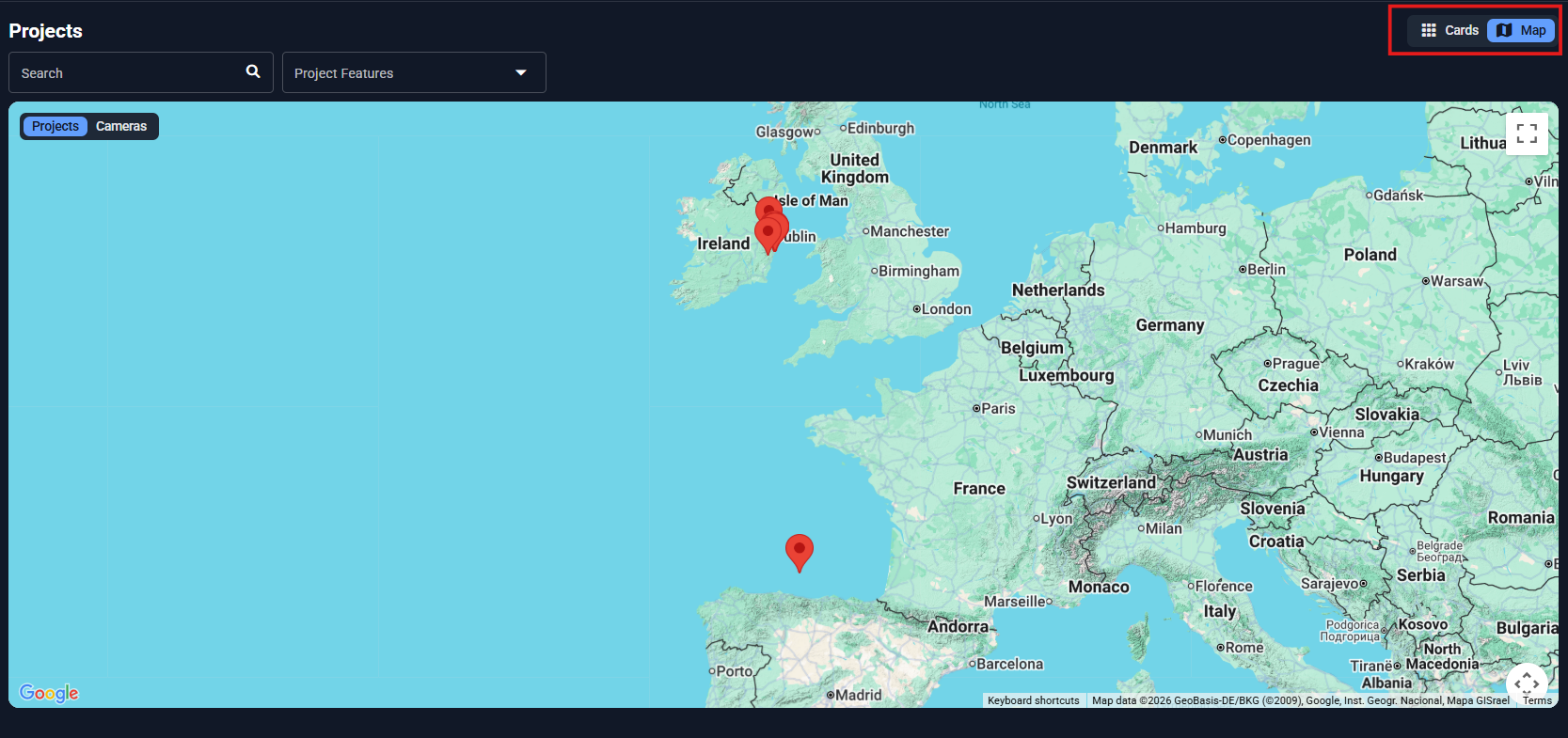
By restoring Map View for all users and placing it directly on the home page, we’ve provided an immediate, high-level overview of your entire project portfolio for faster site selection and logistics planning.
🔑 Sign-in/Sign-up Page
We redesigned the SSO icons to improve the UI.
👷 PPE Disclaimer
Added a note to the PPE page regarding Data retention.
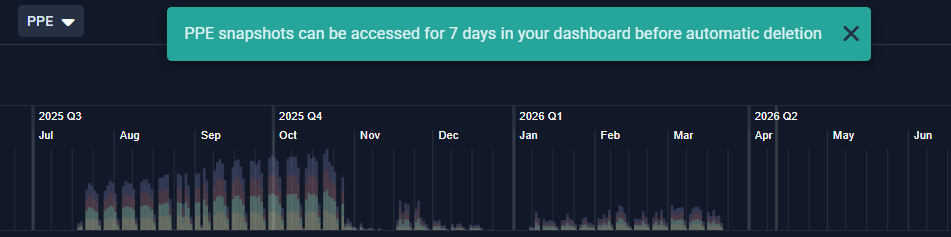
We’ve added clear data retention alerts to the PPE dashboard so safety managers can proactively download critical compliance snapshots within the 7-day window before they are automatically deleted.
⏯️ Media Player
We’ve upgraded the video player with a fresh look and added audio.
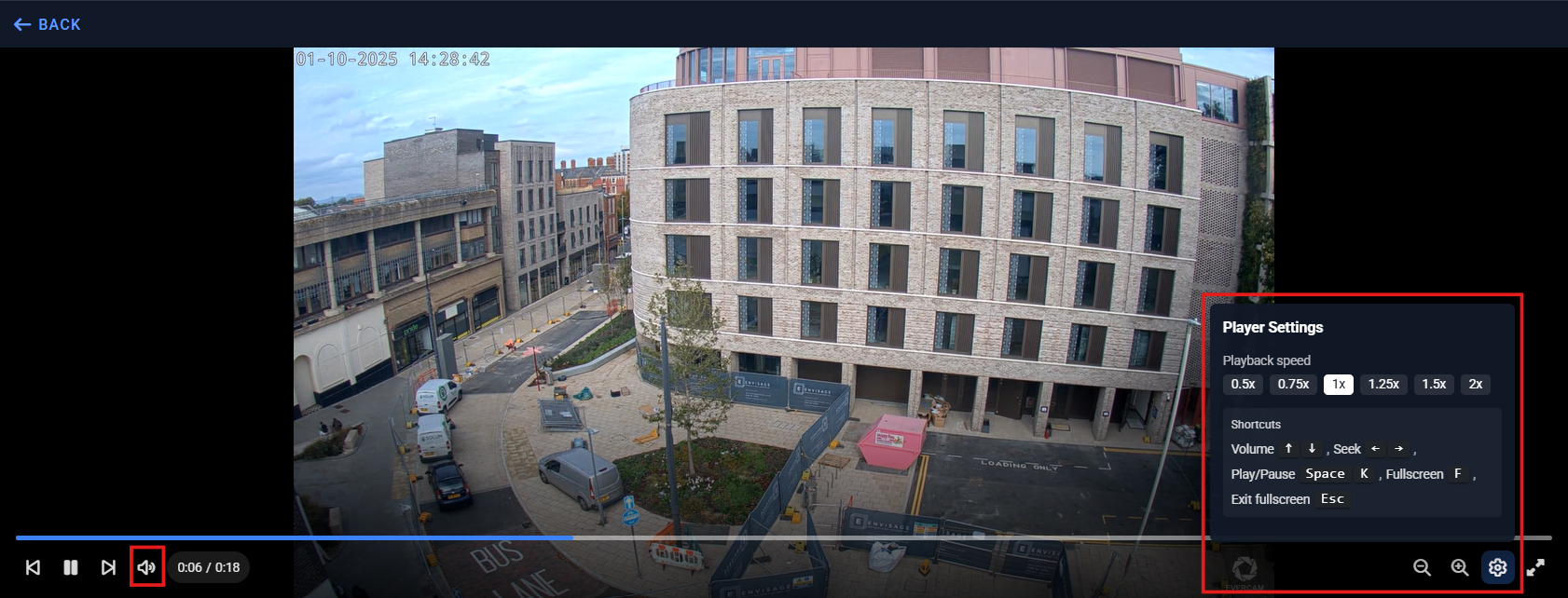
Our redesigned video player offers a more intuitive interface with customizable playback and saved personal preferences, allowing every user to review site footage 2x faster while keeping their favourite viewing settings active across every session.
🚁 Drone
The new Drone Upload UI is live.
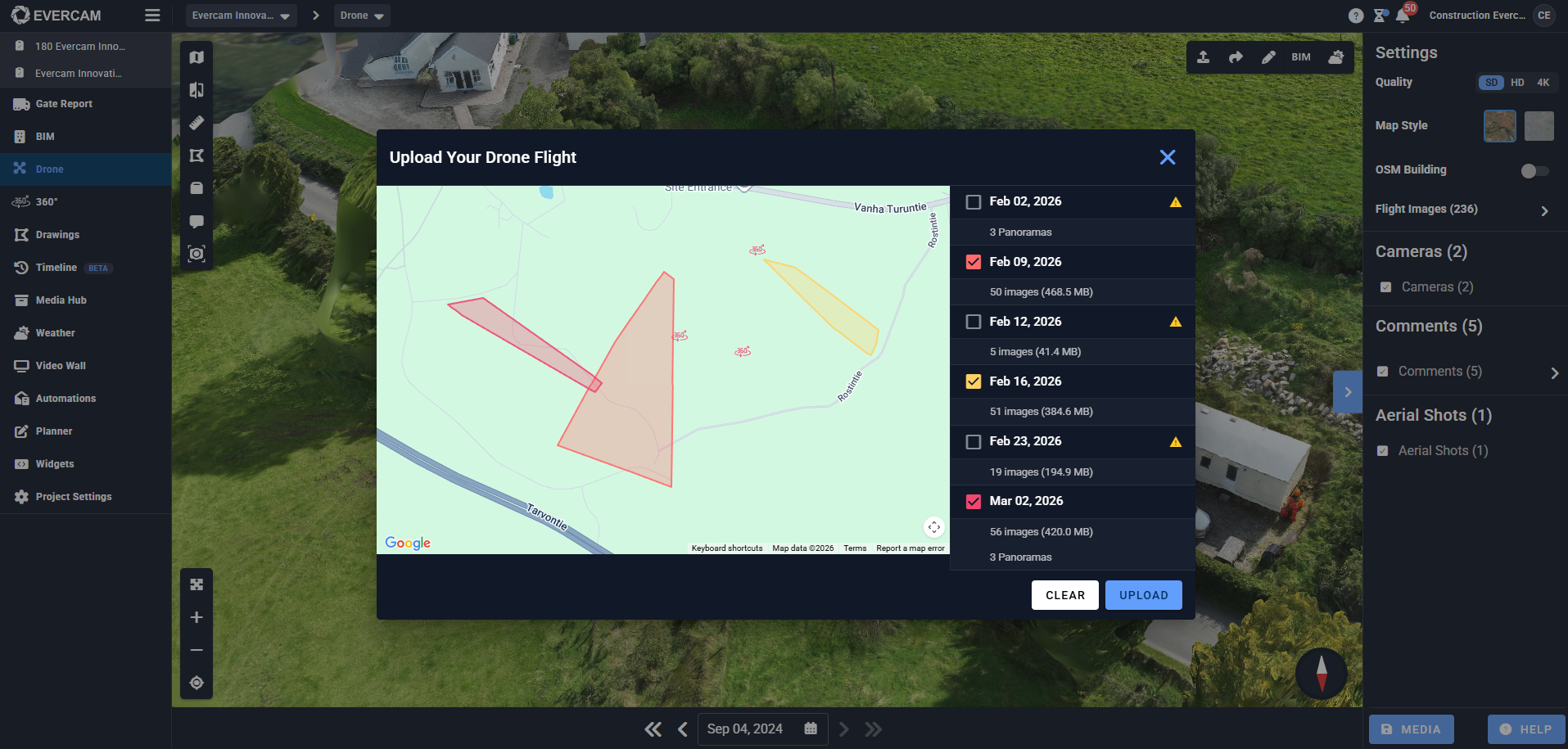
Changes:
Users can upload multiple flights in one go (instead of multiple uploads).
We added the ability for users to upload Aerial shots directly in the platform.
The map now shows shapes to determine the mapping (instead of dots) & shows the Aerial shots location.
Our new drone interface saves hours of admin work by supporting bulk flight uploads and direct aerial shot transfers, while giving you a more accurate project overview through shape-based mapping.
☑️ Account
We’ve enforced Persona selection for SSO users upon sign-up.
🖥️ UI/UX
Updated the Top bar
Notification badge always visible, uses error colour, and caps counts as "99+".
User menu shows an avatar (initials) and reveals full name on wider screens.
Breadcrumbs: first item emphasised as the home/logo, items show truncation tooltips and dropdowns for overflow; camera and battery indicators repositioned.

Simplifies navigation through complex project structures with emphasized home links and truncation tooltips for smaller screens.
Filters
Made the filters available without the need for a toggle.

Accelerates data discovery by making all search filters visible by default, removing unnecessary clicks to find specific project information.
📐 Drawings
Deployed drawings info page and Help section
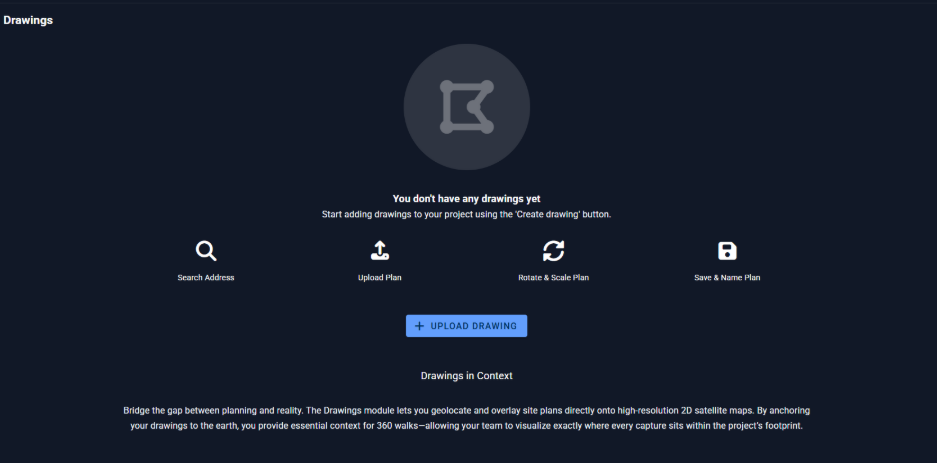
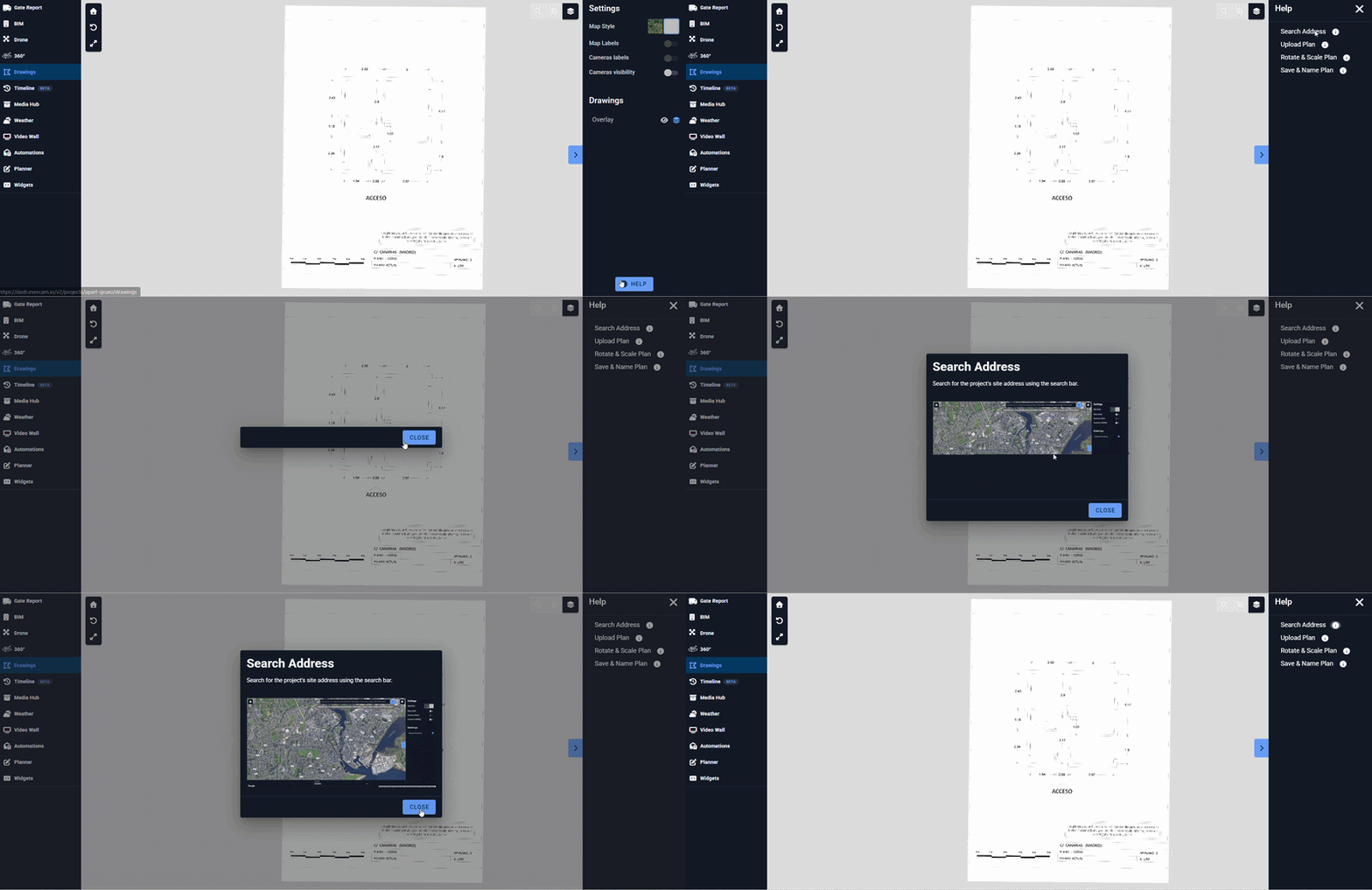
Provides an intuitive onboarding experience for the Drawings module to help teams quickly geolocate site plans onto satellite maps.
🏛️ BIM
Forge BIM Compare export deployed
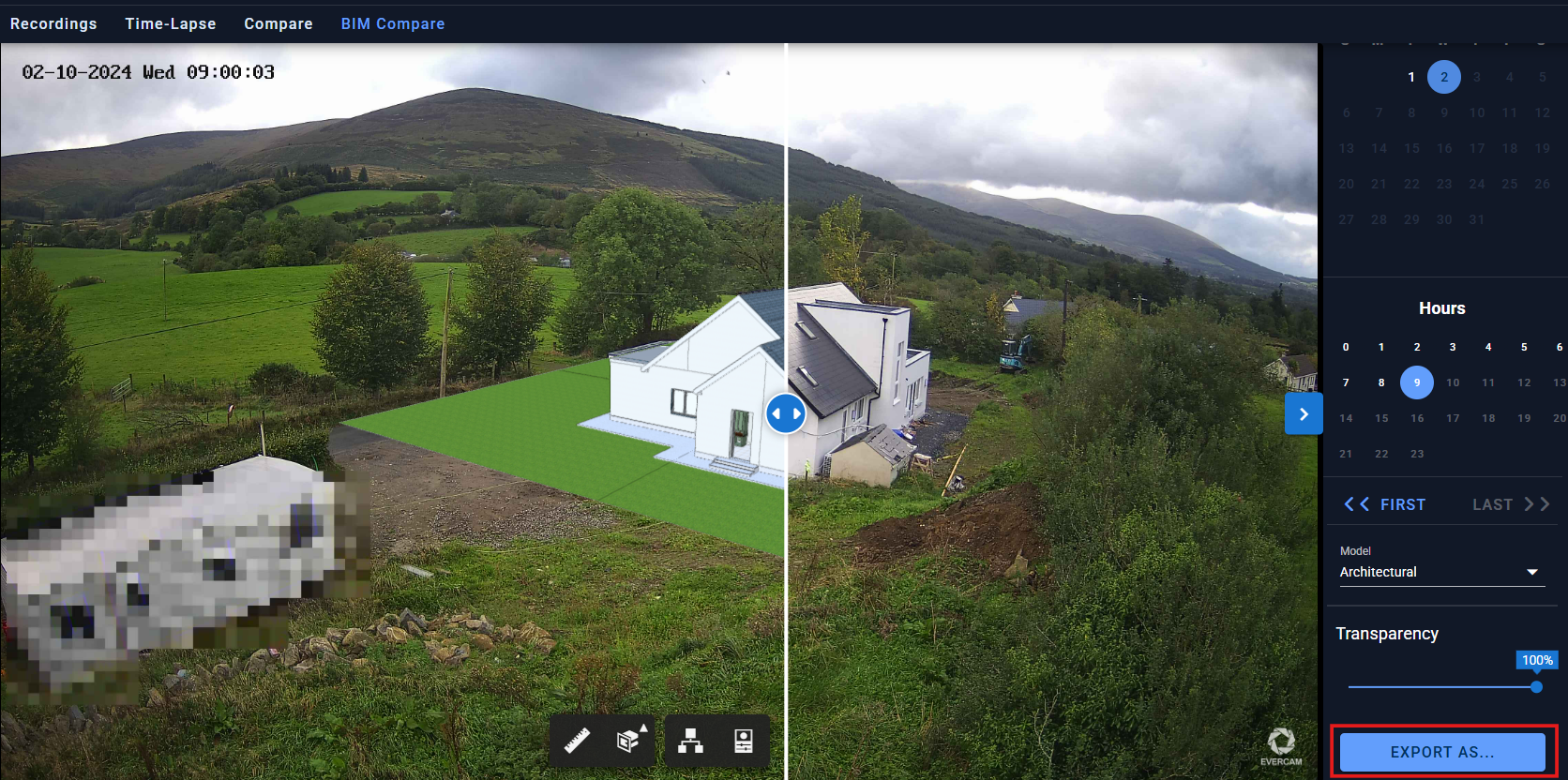
Allows users to easily share aligned BIM-vs-actual images in external progress reports to prove construction accuracy to stakeholders.
March
🤖 Ask AI
We deployed Copilot version 2, which is now called Ask AI.
Provides an advanced AI assistant to help users navigate the platform and extract insights from their project data more efficiently.
🗺️ Map View
We updated the UI of Map View. The project map view is within the Project Settings page.
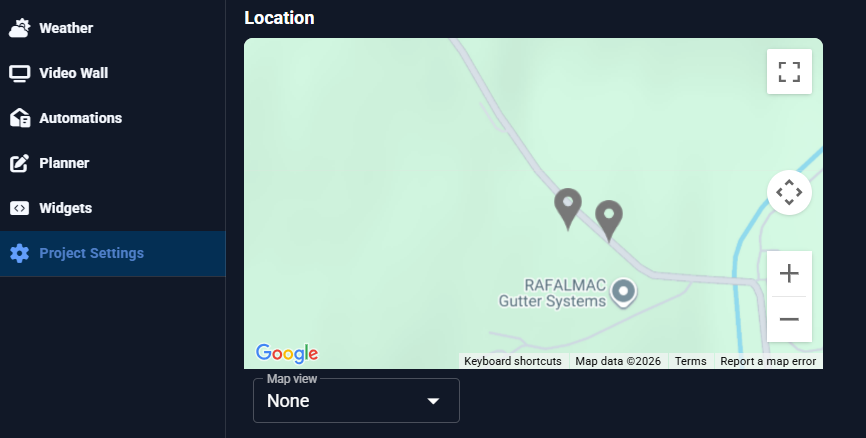
Provides a more intuitive, centralized location within Project Settings to manage and visualize site geography.
🔄 Automations
We deployed the Gate Report automation.
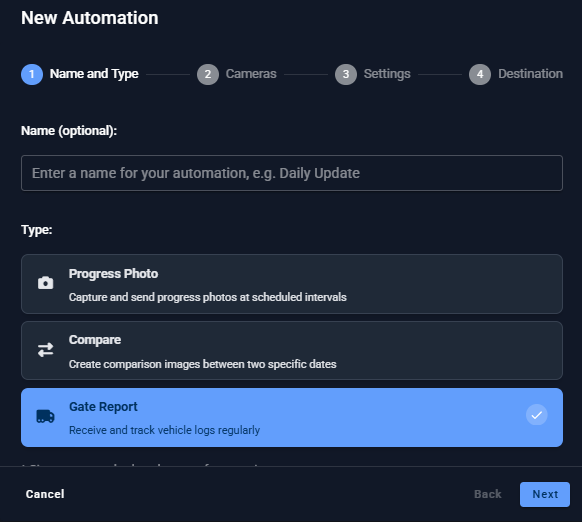
Saves time by automatically delivering vehicle logs directly to a user's inbox on a regular schedule.
⚙️ Project Settings
We added a Camera Access tab to show the list of users with access to each camera on the project.
Increases transparency for project admins by providing a clear list of exactly which users have permission to view each camera.
🚶♂️ 360
We disabled the Enhance Light feature for walks by default. It can now be enabled by clicking the feature button.
February
🔏 Role-based Access Control
We deployed the new permissions system that restricts or grants system access based on a person's specific job function.
Read more in Role-Based Access Control
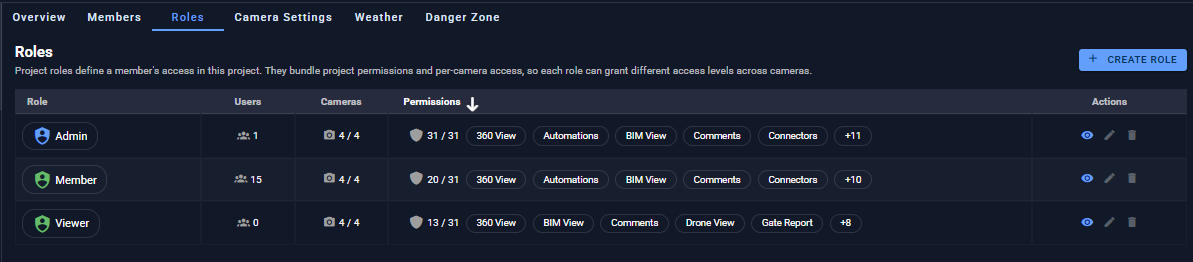
Improves security and compliance by ensuring team members only see the features and cameras relevant to their specific job functions.
🚌 Gate Report
Added the option to click a plate number to filter by it.
Allows for instant security and logistics tracking by letting users filter vehicle logs simply by clicking on a captured license plate.
🚶♀️ 360
We deployed the multi-path feature, showing all the walks of the same date in different colours within the same floor plan.
Enables easy progress comparison by displaying multiple walks from the same date in different colors on the same floor plan.
January
📲 Capture App
Force Camera Record Settings: EV, WB, AUTO Settings *
📺 Video Wall
Added an Error message when deleting a preset that is in use.
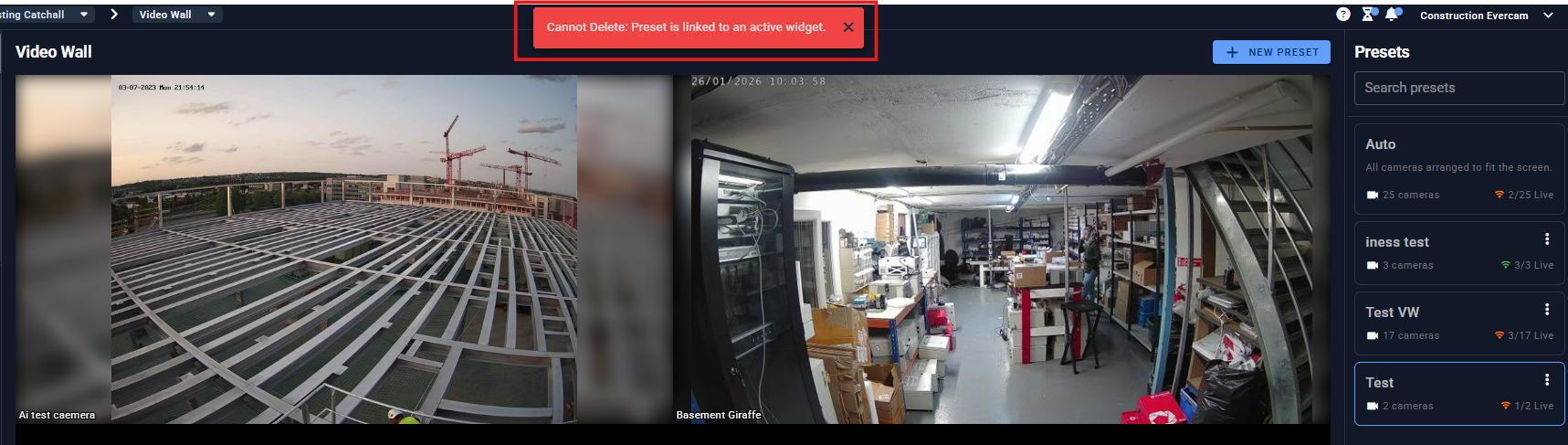
Prevents accidental data loss by providing an error message when a user tries to delete a preset that is currently linked to an active widget.
🕹️ PTZ
Disabled the preset option when the user has no permission to move the camera.
Part of the Role-Based Access Control System.
📚 Media Hub
Added Zoom In/Out buttons in the media player (for recordings/timelapses).
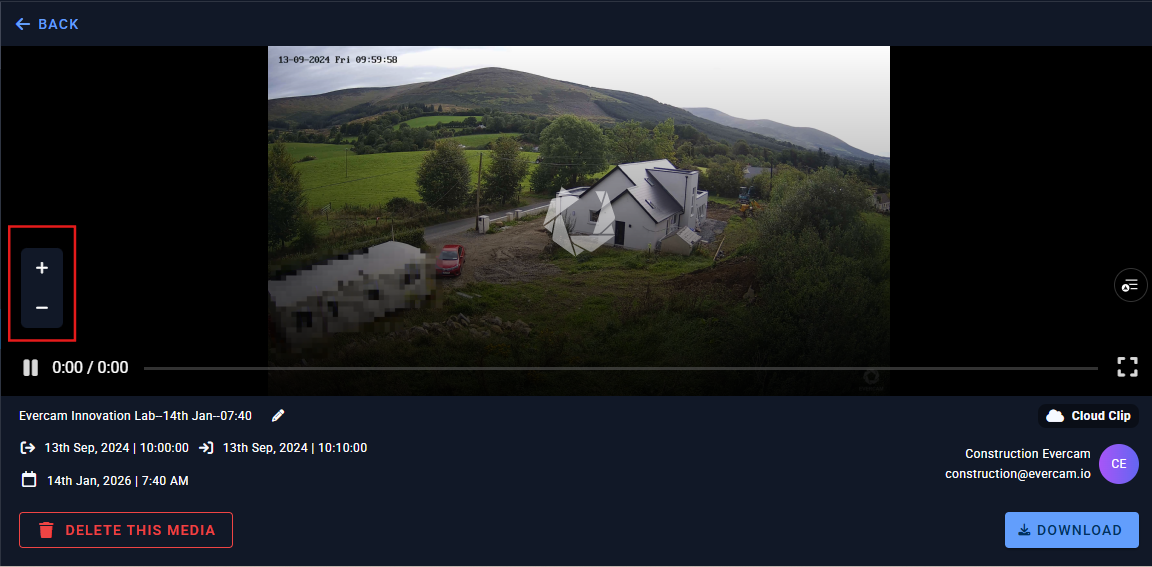
Provides a better viewing experience with integrated zoom controls for recordings.
📶 Connectors
We improved the UI for the “Send to Procore” dialog.
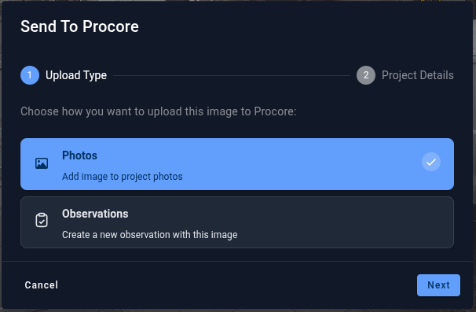
Streamlines the integration workflow, making it faster to push site photos or observations directly into Procore projects.
📞 Project Contacts
We are including the information of the assigned Sales and CS on a project through Contacts.
Select a Project > Go to the Help menu > Contacts.
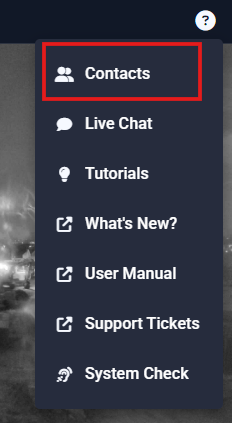
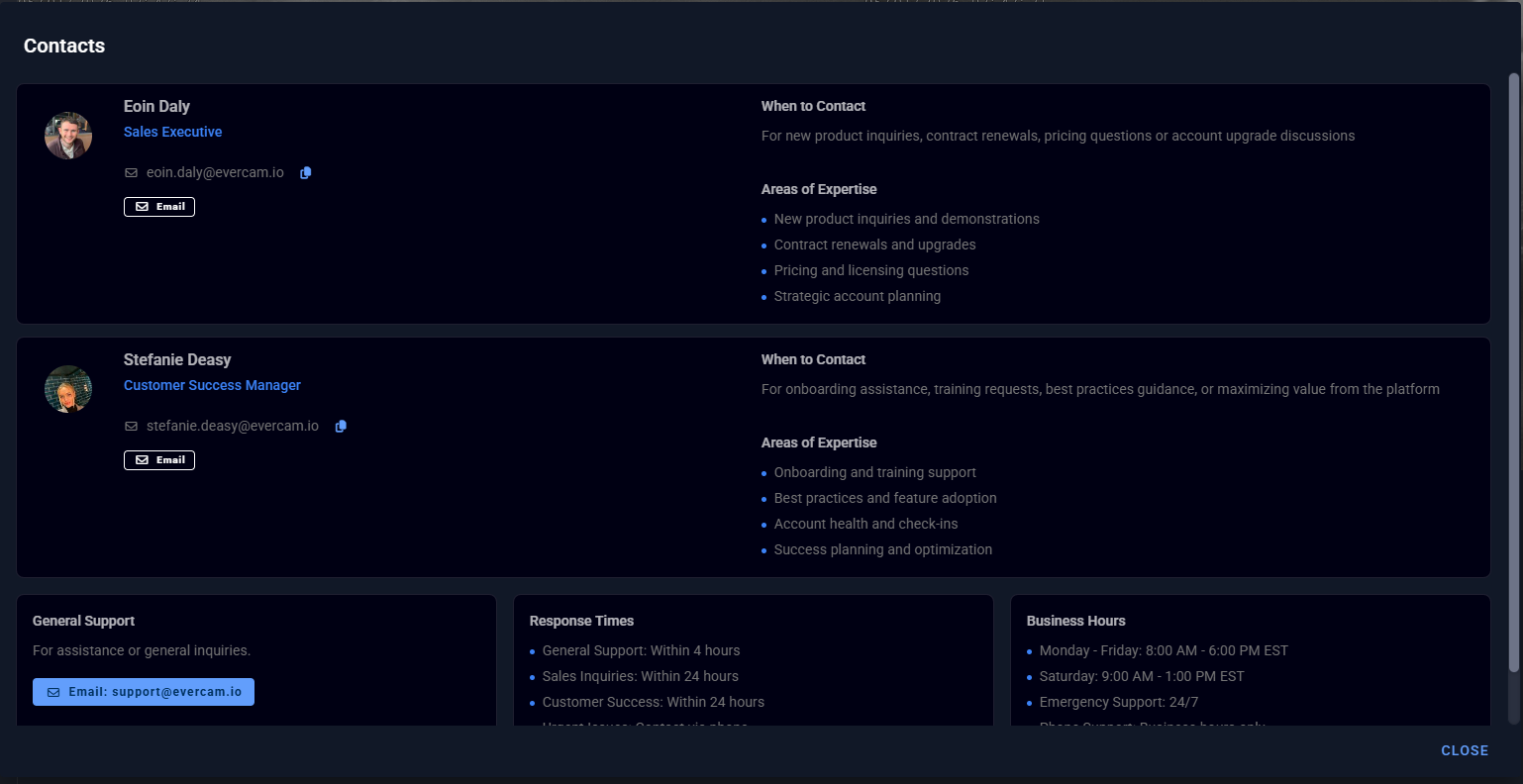
Enhances support by placing the direct contact information for assigned Sales and CS representatives right within the project help menu.
🔍 Smart Search
Added the ability to mark up and download the heatmap
Enables users to download and annotate activity heatmaps to analyse site traffic patterns and improve operational efficiency.
📚 Media Hub
Improved the UI of the empty state (when no media files are saved yet)

Provides a clearer interface for managing site media.
🚶♀️ 360
Added a feature to enhance light on the 360 walk.
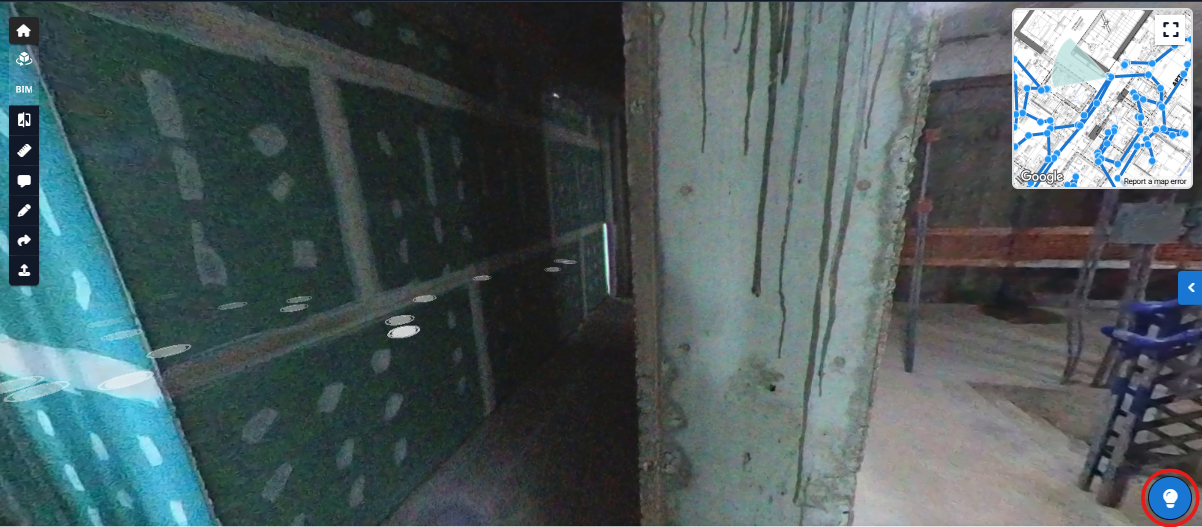
Improves visibility in dark or indoor construction environments by allowing users to brighten 360 walks with a single click.